Language, Ethnicity, and Race
Overview
EHR Certification requirements for "ONC 2015 Edition Software" required the transition CDC-coded Race and Ethnicity values, both of which are extensive compared to previous requirements.
What's New
The redesigned screen now presents a grid in which the patient's choice are represented in the left column, a list of practice-specific "common" choices are represented in the middle column, and a searchable list of all values is represented in the right column.
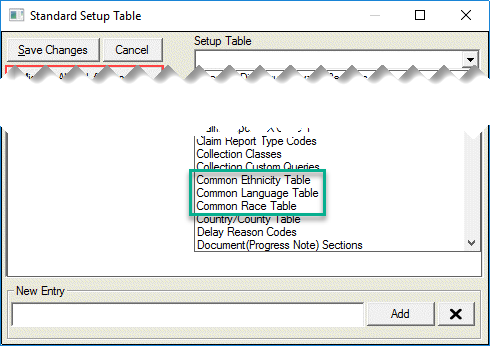
The coded Language, Race, and Ethnicity values are maintained as Value Sets, and a practice can define their short common lists as Table Sets in Common Ethnicity Table, Common Language Table, and Common Race Table. See Setup Other Tables for more information about how to access this screen.
Each complete list can be searched when the user types at least three (3) characters to begin the search. Search results can then be refined by typing additional characters.
An All button in the complete lists displays all possible choices without requiring a search and the Exp. expands a choice when it has a number in parantheses to the right. For example, Hispanic or Latino (41) in the example below means that there are 41 subvalues that are classified as Hispanic or Latino if that patient prefers that degree of specificity. Otherwise the user can choose Hispanic or Lantino.
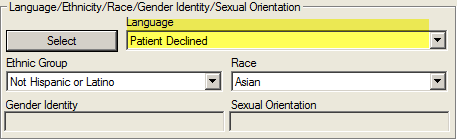
All sections include a 'Patient Declines to Specify' value and this choice will appear in the Demographics screen when selected.
Instructions
Select a patient from the Patient List.
Click the Demographics button.
Click the Select button on the Demographics screen to open the Ethnicity, Race, Language, Gender Identity, Sexual Orientation screen.
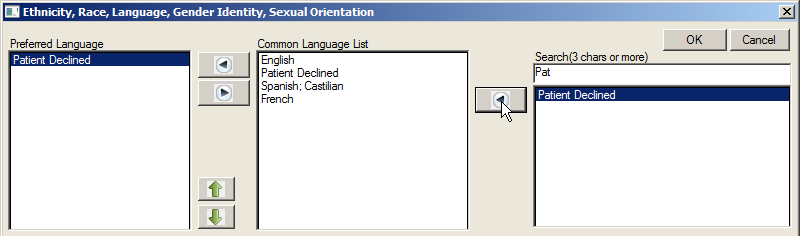
Enter 3 characters (or more) in the Search field or click the All button to show all of the choices.
Click the left arrow to put the selection in the Common Language List.
Repeat for the Common Ethnicity List and the Common Race List.

Click the Gender Identity choice list and select the desired gender.
- If the patient prefers to describe their gender identify other than the standard coded values, use the “Additional gender category or other, please specify”.
- Once selected, free text the desired Gender Identity.
- The free-text description is recorded to reflect the patient’s self-described Gender Identify.
- If the patient prefers to describe their gender identify other than the standard coded values, use the “Additional gender category or other, please specify”. The free-text description is recorded to reflect the patient’s self-described Gender Identify.
Click the Sexual Orientation choice list and select the desired sexual orientation.
- If the patient prefers to describe their sexual orientation other than the standard coded values, use the “Additional sexual orientation or other, please specify”.
- Once selected, free text the desired Sexual Orientation.
- The free-text description is recorded to reflect the patient’s self-described Sexual Orientation.
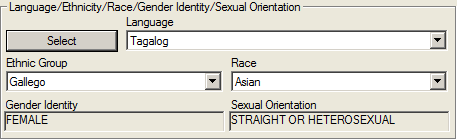
If the patient declines to specify a preferred Language, Ethnicity, Race, Gender Identity or Sexual Orientation, select the Patient Declined choice in the Common Language, Ethnicity or Race list and Gender Identity and Sexual Orientation choice lists.
The notification will appear in the appropriate field in the Demographics screen.
Click the Save button to close the Demographics screen.