Enhanced Orders
Some client configurations have an Enhanced Orders screen which allows the user to search and filter patient orders more efficiently. This is especially useful for practices that include many different facilities and appointment groups.
In addition to the search functions in the Orders screen (see Patient Orders), the Enhanced screen offers the following search features:
1. Query Filter - Allows pre-defined search criteria to function as a pre-filter before other criteria are selected.
2. Referral - Selects a referring physician or group by clicking the select button and entering the name in the Referring/Related Provider List.
3. Appt Facility - Reviews orders from a particular facility or facilities. Select one, several or click the checkbox for All or None.
4. Appt Group - Reviews orders from a particular facility or facilities. Select one, several or click the checkbox for All or None
5. Work Step - Reviews orders related to a particular workflow process step
Click the Orders button on the Workflow Views menu.

Click the patient order on the screen to highlight it.
Click the More/Status button on the button bar to open the Order Status screen for that order.
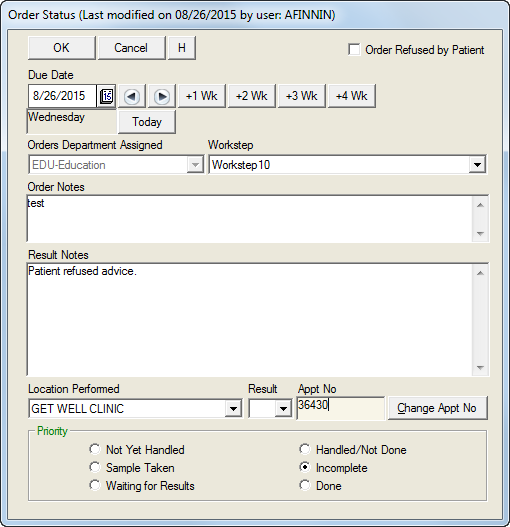
Complete or change the information on the Order Status screen.
 Note that in the enhanced Orders feature, it is possible to change the Due Date of the order.
Click the OK button to save the information and close the screen.