Guide to Setting Window Colors
Setting Window Color Preferences in the MedInformatix Client Workflow Views can be performed at the individual Workgroup and [All] Workgroup levels to make it easy to apply color settings to groups of users or all users. It is also possible for a user to set Color Preferences at the user level on a per screen basis, should a visually impaired person need to reset to "standard" colors or set high contrast colors, for instance.
Enabling and Accessing Color Preferences
- To enable access to Color Preferences, enable the setting in the necessary Workgroup Profiles. This would typically be a managerial or administrative function. A restart of the MedInformatix Client is required to access the Color Preferences once access is granted.
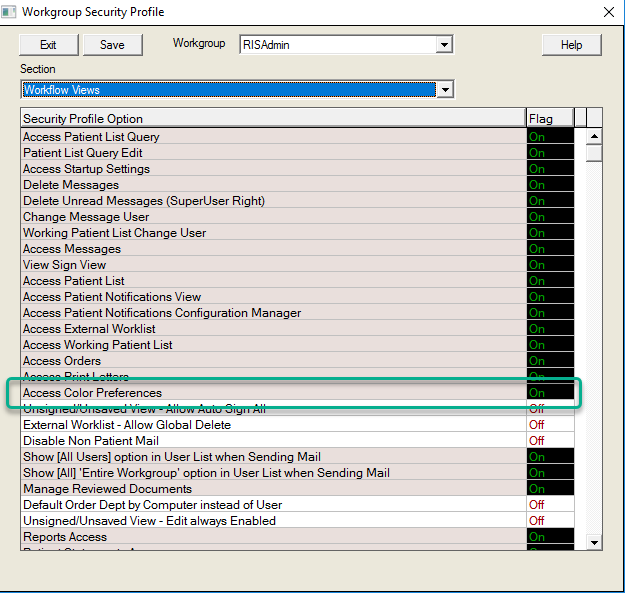
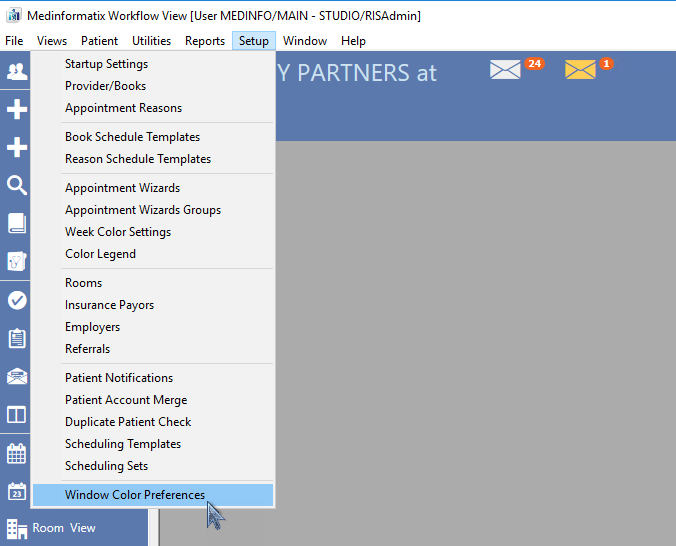
- To access Color Preferences for Workgroup Profiles:
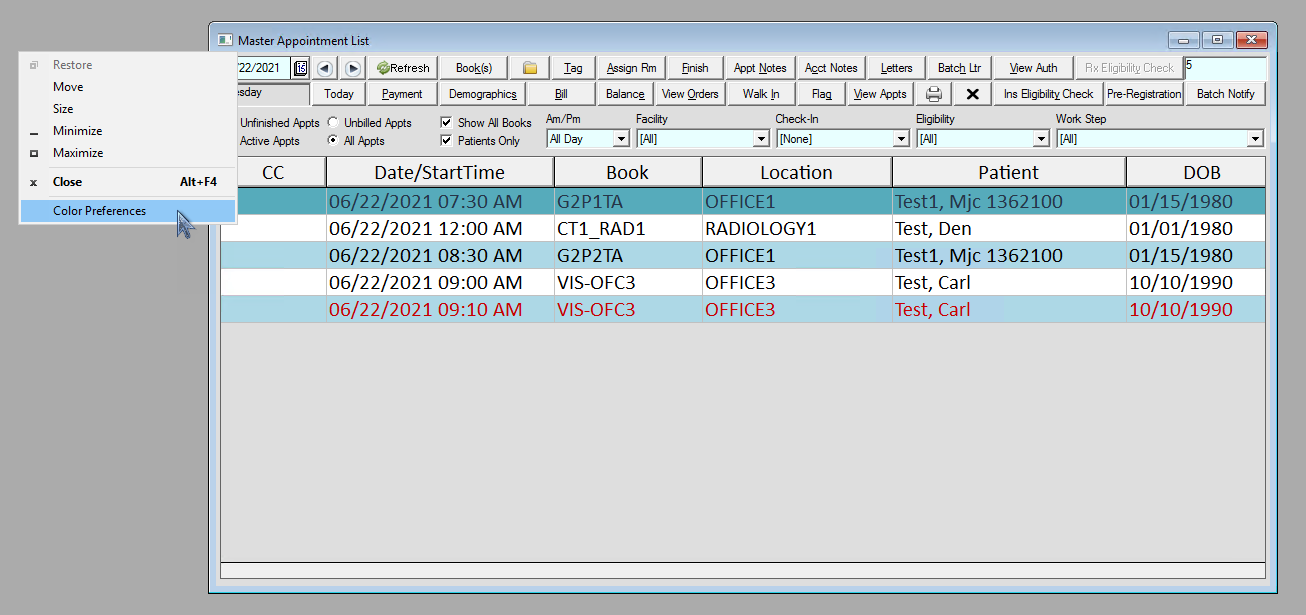
- To access Color Preferences in a specific screen by a specific user:
The Color Preferences Window
The Color Preferences window allows a user to configure color settings for individual Workgroups and all Workgoups. Optionally, Color Profiles can be saved to allow easy retrieval of color combinations for use in other Workgroups or seasonal occassions, for example.
Colors are applied in the following hierarchy:
- [All] Workgroups - applies to all users in all Workgroups
- Individual Workgroups - overrides [All]
- Single User - overrides any Workgroup configuration
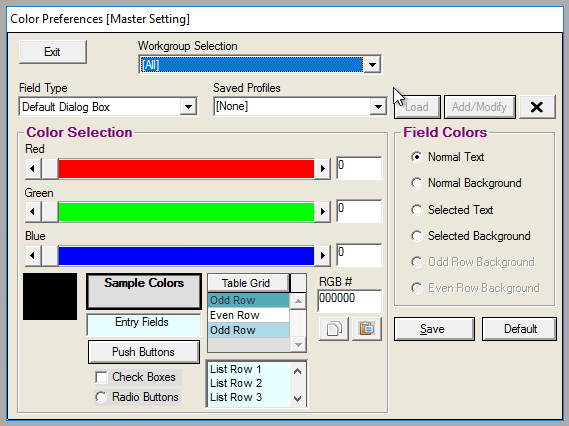
Buttons
Exit: Closes the screen
Save: Saves the current Color Preferences to the selected Workgroup Profile
Default: Resets to standard colors
Load: Loads a Saved Color Profile
Add/Modify: Saves a new Color Profile or modify an existing one, as defined in the Saved Profiles choice list. By default, there are no Saved Color Profiles.
X: Deletes a Saved Color Profile
Field Types
Default Dialog Box
A dialog box is the window that opens when you click a button or perform an action. For instance, the Master List View is dialog box, the Transaction History is a dialog box, the Add Vitals screen is a dialog box. So, setting the colors of this Field Type effectively colors all of the applicable windows you open when you use MedInformatix. Specifically, setting the "Normal Background" for this Field Type changes the standard "tan" color of MedInformatix to the color of your choice.
Grids
A grid is the multi-row, multi-column component of any screen (i.e. dialog box) that lists information. For instance, in the Master List View, the list of patient appointments is contained in a grid. In the Appointment Review View, the list of appointment requests is contained in a grid. In the Medications History, the list of a patient's medications is contained in a grid. Using the Odd / Even Row Background color settings can help create better differentiation between consecutive rows, as seen in the above screenshot of the Master List.
Entry Fields & Comboboxes
Entry fields and comboboxes are the place in the MedInformatix Client where information is entered (typed) or selected. A great example of a screen with many Entry Fields and Comboboxes is the Patient Demographics screen. Setting the background color of this field type to something different than the background color of the Default Dialog box can help make fields where users type stand out more and have high visibility.
Listboxes
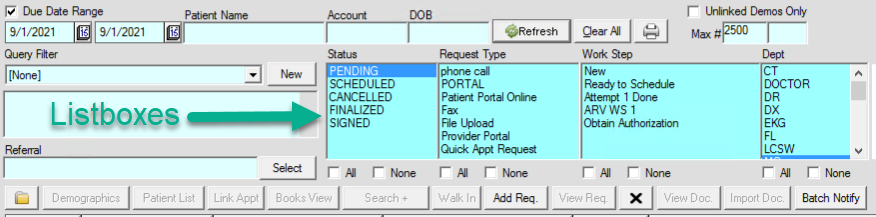
Listboxes are typically used as filters in MedInformatix. For example, in the Enhanced Orders View, there are four side-by-side listboxes used to filters the list of Orders, as seen in this screenshot.
Push Buttons
Nearly every screen in the MedInformatix Client has at least one Push Button, if not many. Save, Ok, Cancel, Demographics, Payments, etc. - these are all examples of Push Buttons that when clicked, open a new window (i.e. Dialog Box). For the best visual appearance, set the Push Button background to the same color as the Dialog Box background.
Check Boxes & Radio Buttons
Like Listboxes, Check Boxes and Radio Buttons are typically used as filters in MedInformatix. For the best visual appearance, set the background color for these controls to the same color as the Dialog Box background.
Color Selection Sample Color Area
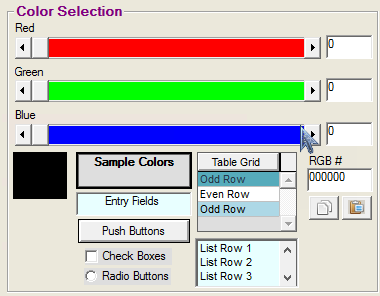
Use the sliders to choose your RGB colors, type the percentage directly in the box to the right of the slider, or easiest, directly in the RGB # field with the color of your liking. RGB color grids & schemes are numerous and readily available on the Internet.
Color Selection Sample Color Area
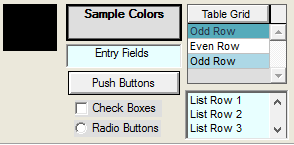
Preview your color choices in this area.
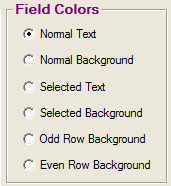
Field Colors
For any Field Type, choose the appropriate Field Color for the you want to save.