NCCI Edits
Overview
The purpose of this feature is to enable the user to manage and utilize the CMS National Correct Coding Initiative (NCCI) edits withing Medinformatix. These edits are specific to Medicare payers although other payers can use the same or similar rules. This additional functionality will allow users to validate CPT combinations and create their own custom rules and exceptions.
What's New
A new screen has been added to the Billing Preferences list which will:
- Validate CPT/DOS combinations against the CMS edit list.
- Enable the CMS edits to apply to claims and choose the impacted payers.
- View/Create custom additions and exceptions to the CMS edit list.
Instructions
- Select Setup Billing Tables from the Preferences tab on the Mai Menu screen.
- Click K NCCI Rules to open the Correct Coding Initiative screen.
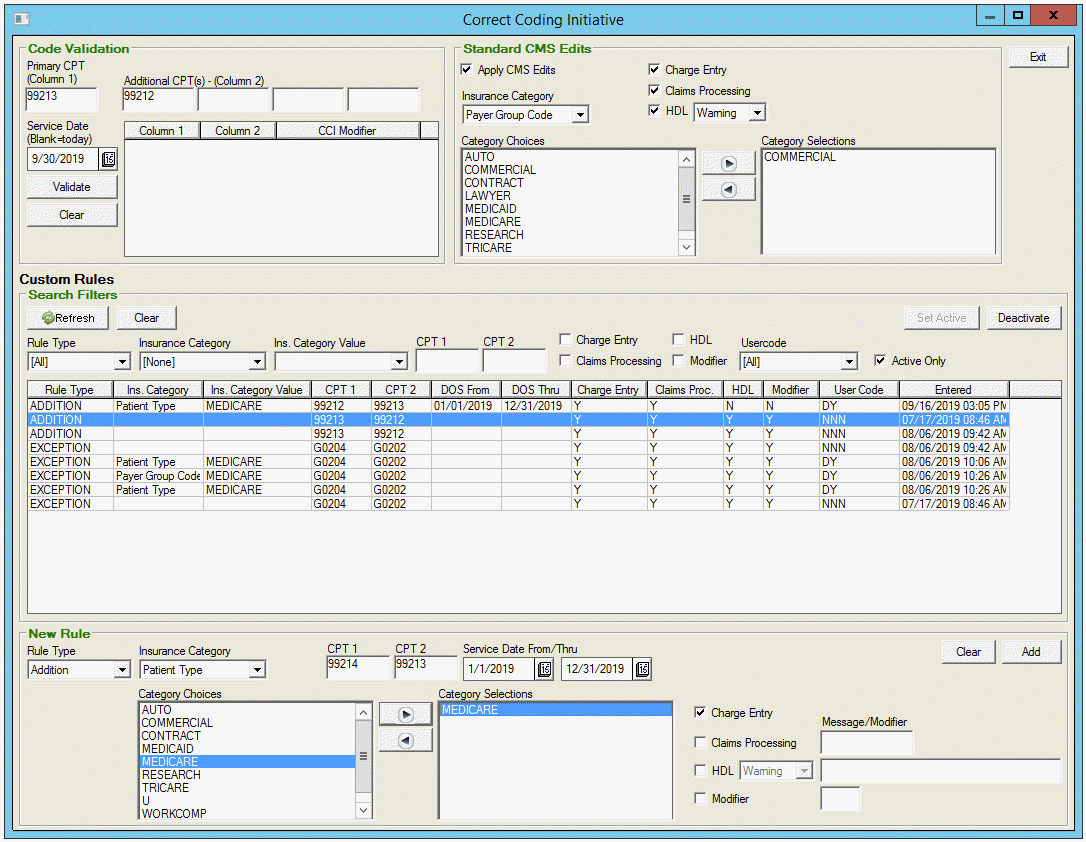
- Populate the screen as per the following tables.
|
Code Validation: This section allows users to validate CPT/DOS combinations against the CMS edits. |
||
|
Field Name |
Description |
Functionality |
|
Primary CPT |
This box must be populated, and it corresponds to the Column 1 CPT from the CMS edit list but for all intents and purposes, its value is interchangeable with the Additional CPTs. |
Free-type five characters. |
|
Additional CPTs |
The left-most box must be populated, and it corresponds to the Column 2 CPT from the CMS edit list but for all intents and purposes, its value is interchangeable with the primary CPT and any Additional CPTs. |
Free-type five characters. |
|
Service Date |
This is the Service Date to be used for point-in-time edit validations. |
A single date is accepted, using today's date when left blank. |
|
Buttons |
||
|
Validate |
EXEC mi_sp_NCCI_Validation @CPT1 = '&FIELD1', @CPT2 = '&FIELD2', @CPT3 = '&FIELD3', @CPT4 = '&FIELD4', @CPT5= '&FIELD5', @ServiceDate = '&FIELD6' |
|
|
Clear |
Resets all input fields to <blank>. |
|
|
Result Box |
||
|
Column 1 |
This is the Comprehensive CPT from Column 1 on the PTP Edits. |
|
|
Column 2 |
This is the Component CPT from Column 2 on the PTP Edits. |
|
|
CCI Modifier |
If there's a match between any of the five queried CPTs, the modifier indicator will be used to determine if a modifier can be added to the Column 2 code in order to be billed as a separate procedure. |
|
|
Standard CMS Edits: Users can choose whether the standard CMS edits are enabled and which payers they apply to. |
||
|
Field Name |
Description |
Functionality |
|
Apply CMS Edits |
Checking the box will apply the standard CMS edit list to the selected payer(s). |
This option is stored in CLPARMS and referenced from there for HDL scrubs and Claims Processing errors. When unchecked, this section will be grayed out. |
|
Insurance Category |
The user can choose one of five "categories" which determines the list of values populated in the Insurance Selection list. |
Five options are hard-coded: Insurance Code, Payer Group Code, Patient Type, Collection Class, and Plan Type. |
|
Insurance Choices |
This list is based on the value chosen as the Insurance Category |
The left box is populated with the list of values in CLINS from the corresponding Insurance Category (CODE, INSCLASS, PTYPE, COLLECTCLASS, or PLANTYPE). Items moved to the right box are those that the rule applies to. |
|
Charge Entry |
When checked, it means charges are validated against mi_NCCI_CMS_PTP_EDITS as they're entered. |
The stored procedure mi_sp_NCCI_CMS_Check is used to identify if the new charge gets a hit against the CMS edits. A warning box will be displayed in these cases. |
|
Claims Processing |
When checked, the CCI REVIEW error will be in effect in Claims Processing. |
Qualified charges in Claims Processing will be flagged with CLCHARGE.ERRORCODE = 'CCI REVIEW' using mi_sp_NCCI_CMS_ClaimsProc. |
|
HDL |
When checked, the CCI REVIEW scrub will be in effect in the HDL. |
The dropdown lets users specify if the CCI REVIEW scrub will be an error or warning. Charges are processed using hdl_NCCI_Scrub. |
|
Search Filters: Custom Rules can be located in the database by using these search parameters. |
|
|
Field Name |
Description |
|
Rule Name |
The two Rule Types are "Addition" and "Exception". An Addition is a new stop when a claim meets the specified criteria. An Exception allows combinations to bill without stopping when there's a matching, active edit in place. |
|
Insurance Category |
Select one of the five "categories" in the dropdown list |
|
Ins. Category Value |
Select the value chosen from the dropdown list which is determined from the value selected from the Insurance Category list. |
|
CPT |
Enter the CPT code associated with the Custom Rule. |
|
Charge Entry |
When checked, then charges are validated against this rule. |
|
Claims Processing |
When checked, the rule is in effect in Claims Processing. |
|
HDL |
When checked, the rules are in effect in the HDL. |
|
Modifier |
When checked, a specified modifier has been added to all charges on a patient's DOS except for one with the highest value. |
|
Usercode |
Select the Usercode of the user who created the custom rule from the dropdown. |
|
Active Only |
When checked, only the rules which are currently active or in use will be searched. |
|
Buttons |
|
|
Deactivate |
Designates the selected rule as not active or currently in use. The deactivated custom rule is not deleted from the database but is excluded from search results unless the Active Only checkbox is unchecked. |
|
Set Active |
Activates a custom rule that has been deactivated. The Set Active button will allow a deactivated rule to appear in the search results when the Active Only checkbox is checked. |
|
Clear |
Resets all input fields to <blank>. |
|
New Rule: Users can make a new custom rule which can be viewed and selected in the search field. |
||
|
Field Name |
Description |
Functionality |
|
Rule Type |
The two Rule Types are "Addition" and "Exception". An Addition is a new stop when a claim meets the specified criteria. An Exception allows combinations to bill without stopping when there's a matching, active edit in place. |
The dropdown will be hard-coded with Addition and Exception. |
|
Insurance Category |
The user can choose one of five "categories" which determines the list of values populated in the Insurance Selection list. |
Five options are hard-coded: Insurance Code, Payer Group Code, Patient Type, Collection Class, and Plan Type. |
|
Category Selections |
This list is based on the value chosen as the Insurance Category. Note: This is a required field. |
The left box is populated with the list of values in CLINS from the corresponding Insurance Category (CODE, INSCLASS, PTYPE, COLLECTCLASS, or PLANTYPE). Items moved to the right box are those that the rule applies to. |
|
CPT 1 |
This is equivalent to the "Column 1" CPT from the Code Validation section. Note: This is a required field. |
Free-type five characters. |
|
CPT 2 |
This is equivalent to the "Column 2" CPT from the Code Validation section. Note: This is a required field. |
Free-type five characters. |
|
Service Dates |
The From/To dates that qualifies a charge based on the Service Date. |
A blank From/To will result in a NULL table value, signifying an open-start or end. |
|
Charge Entry* |
When checked, it means charges are validated against this rule as they're entered. |
The function mi_sp_NCCI_CUSTOM_Check is used to identify if the new charge gets a hit against this rule. A warning box will be displayed in these cases. |
|
Claims Processing* |
When checked, the rule will be in effect in Claims Processing. If this box is checked, there must be an entry in the text field. |
Charges in Claims Processing will be flagged with the custom ERRORCODE from the corresponding free-text field based on the results from mi_sp_NCCI_Custom_ClaimsProc. |
|
HDL* |
When checked, the rules will be in effect in the HDL. If this box is checked, there must be an entry in the text field. |
The dropdown lets users specify if the scrub will be an error or warning. The Scrub Message is set in the free-text field. Claims are scrubbed using hdl_NCCI_Scrub. |
|
Modifier* |
When checked, the specified modifier will be added to qualified charge based on the Column 2 CPT. If this box is checked, there must be an entry in the text field. |
Free-type two characters. |
* Some combination of these boxes must be checked for the Add button to be activated. These options are grayed out when the Rule Type = Exception.