Appropriate Use Criteria (AUC)
for the Furnishing Provider
Overview
On January 1, 2020, Furnishing providers will begin an operational and educational testing year of submitting Ordering Provider AUC information on claims, in the form of G-Codes and CPT Modifiers. The program then becomes required on January 1, 2021. For an AUC overview, please see this slide deck from our MI Summit 2020 AUC general session.
What's New
A Furnishing Provider workflow for the MedInformatix RIS accommodates collecting and conveying AUC information from the Ordering Provider to submission of Medicare claims using HCPCS "G Codes" and modifiers attached to CPTs.
Clinical Priorty Areas
While AUC checks must be performed for all Medicare patients being scheduled for CT, MRI, PET, and Nuclear exams, the program initially focuses on the following 8 clinical priority areas:
- Coronary artery disease (suspected or diagnosed)
- Suspected pulmonary embolism
- Headache (traumatic and non-traumatic)
- Hip pain
- Low back pain
- Shoulder pain (to include suspected rotator cuff injury)
- Cancer of the lung (primary or metastatic, suspected or diagnosed)
- Cervical or neck pain
qCDSMs
A Value Set section has been created for all qCDSMs with G Codes associated to each qCDSM using Value Set ID.
- Click the Preferences Tab on the Main Menu screen.
- Select Setup Value Sets from the dropdown menu to open the Value Set Setup screen.
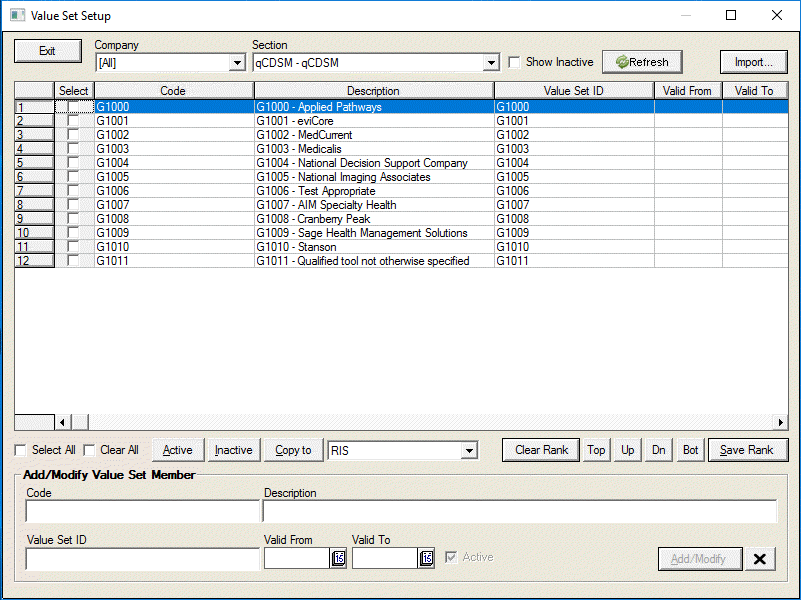
- Select [All] from the Company field dropdown list.
- Select qCDSM - qCDSM from the Section dropdown list.
The qCDSM choice list for the Value Set includes the following:
- G1000 - Applied Pathways
- G1001 - eviCore
- G1002 - MedCurrent
- G1003 - Medicalis
- G1004 - National Decision Support Company
- G1005 - National Imaging Associates
- G1006 - Test Appropriate
- G1007 - AIM Specialty Health
- G1008 - Cranberry Peak
- G1009 - Sage Health Management Solutions
- G1010 - Stanson
- G1011 - Qualified tool not otherwise specified
AUC Modifiers
The AUC Modifiers are located in the MODIFIER.TBL file.
- Click the Preferences tab on the Main Menu screen.
- Select Setup Billing Tables from the dropdown menu.
- Select H Modifiers from the dropdown list. The Modifiers appear in the [AUC] section.
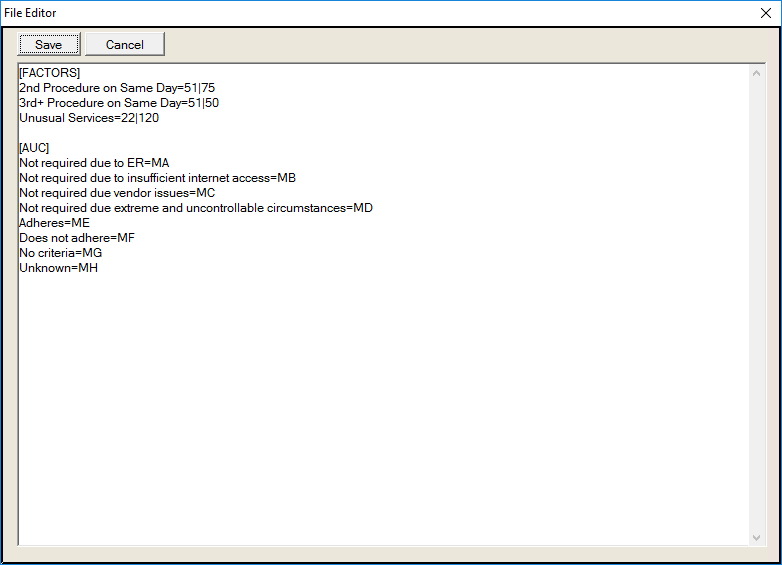
The AUC Modifiers list includes the following:
- MA - Not required due to ER
- MB - Not required due to insufficient internet access
- MC - Not required due vendor issues
- MD - Not required due extreme and uncontrollable circumstances
- ME - Adheres
- MF - Does not adhere
- MG - No criteria
- MH - Unknown
Referral Credential
- Click the Search button next to the Referral Source field on the Confirm Appointment screen.
- Click the Edit button to open the Referral Source Entry screen.
- Click the Credentials button to open the Referral Source Credentials screen.
- Select DEFAULT QCDSM from the Credential Name field dropdown list.
- Select the G number from the Credential Value field dropdown list.
- Click the Add/Modify button to save the selection.
- Click the Done button to exit the screen.
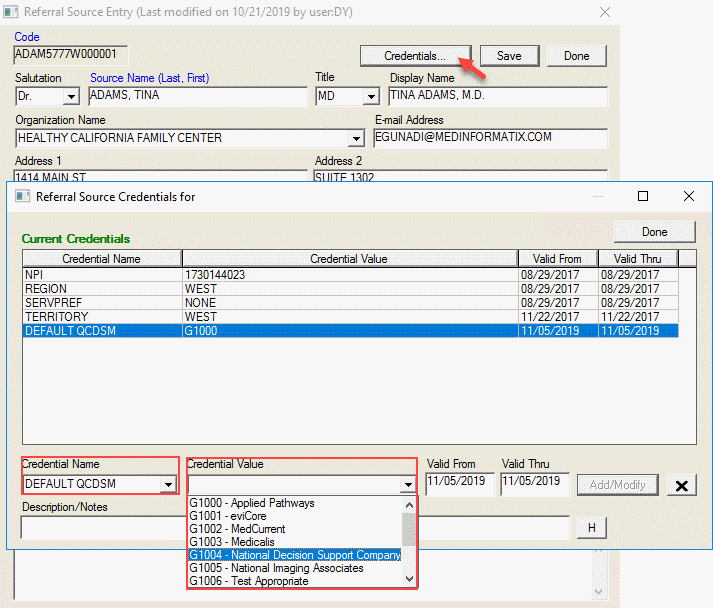
Insurance Indicator for AUC
- Click the Demographics button on the Patient List screen.
- Click the Edit Coverage button next to the Insurance Coverages field.
- Click the View button next to the Insurance Carrier field.
- Select the Insurance Carrier.
- Click the Edit button to open the Insurance Carrier Entry screen.
- Click the Credentials button at the bottom of the screen.
- Select AUC REQUIRED from the Credential Name dropdown list.
- Enter Y in the Credential Value field.
- Click the Add/Modify button to enter the credential in the Current Credentials field.
- Click the Done button to exit the screen.
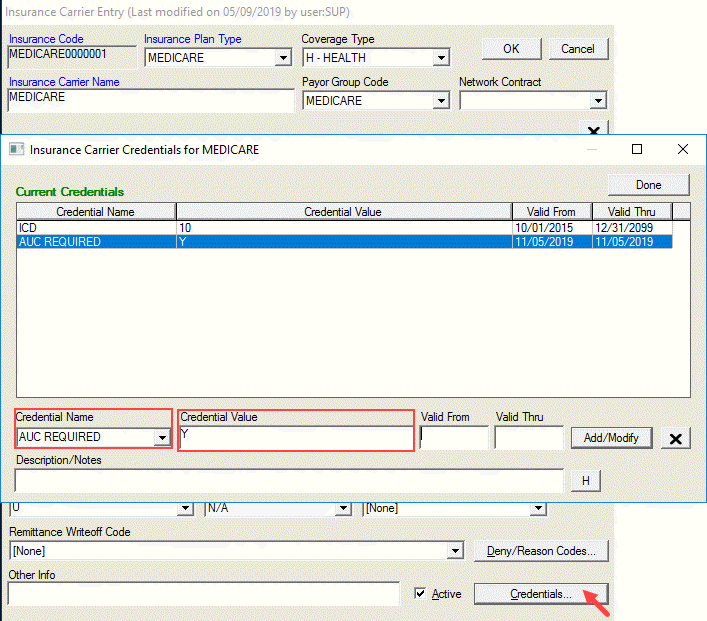
Applicable CPTs Codes as listed in the AUC_CPT Value Set:
Magnetic Resonance Imaging 70336, 70540, 70542, 70543, 70544, 70545, 70546, 70547, 70548, 70549, 70551, 70552, 70553, 70554, 70555, 71550, 71551, 71552, 71555, 72141, 72142, 72146, 72147, 72148, 72149, 72156, 72157, 72158, 72159, 72195, 72196, 72197, 72198, 73218, 73219, 73220, 73221, 73222, 73223, 73225, 73718, 73719, 73720, 73721, 73722, 73723, 73725, 74181, 74182, 74183, 74185, 75557, 75559, 75561, 75563, 75565, 76498, 77046, 77047, 77058, 77059
Computerized Tomography 70450, 70460, 70470, 70480, 70481, 70482, 70486, 70487, 70488, 70490, 70491, 70492, 70496, 70498, 71250, 71260, 71270, 71275, 72125, 72126, 72127, 72128, 72129, 72130, 72131, 72132, 72133, 72191, 72192, 72193, 72194, 73200, 73201, 73202, 73206, 73700, 73701, 73702, 73706, 74150, 74160, 74170, 74174, 74175, 74176, 74177, 74178, 74261, 74262, 74712, 74713, 75571, 75572, 75573, 75574, 75635, 76380, 76497
Single-Photon Emission Computed Tomography 76390
Nuclear Medicine 78012, 78013, 78014, 78015, 78016, 78018, 78020, 78070, 78071, 78072, 78075, 78099, 78102, 78103, 78104, 78110, 78111, 78120, 78121, 78122, 78130, 78135, 78140, 78185, 78191, 78195, 78199, 78201, 78202, 78205, 78206, 78215, 78216, 78226, 78227, 78230, 78231, 78232, 78258, 78261, 78262, 78264, 78265, 78266, 78267, 78268, 78270, 78271, 78272, 78278, 78282, 78290, 78291, 78299, 78300, 78305, 78306, 78315, 78320, 78350, 78351, 78399, 78414, 78428, 78445, 78451, 78452, 78453, 78454, 78456, 78457, 78458, 78459, 78466, 78468, 78469, 78472, 78473, 78481, 78483, 78491, 78492, 78494, 78496, 78499, 78579, 78580, 78582, 78597, 78598, 78599, 78600, 78601, 78605, 78606, 78607, 78608, 78609, 78610, 78630, 78635, 78645, 78647, 78650, 78660, 78699, 78700, 78701
Appointment Request Integration
- Select Appointment Request from the ARV screen.
- Click the Edit Req. or the Add Req. button to open the Appointment Request Details screen.
- Select the qCDSM from the dropdown list on the qCDSM field OR Click the AUC Information Not Provided checkbox. AUC Information Not Provided checkbox adds the MH Modifier to the AUC Modifier field.
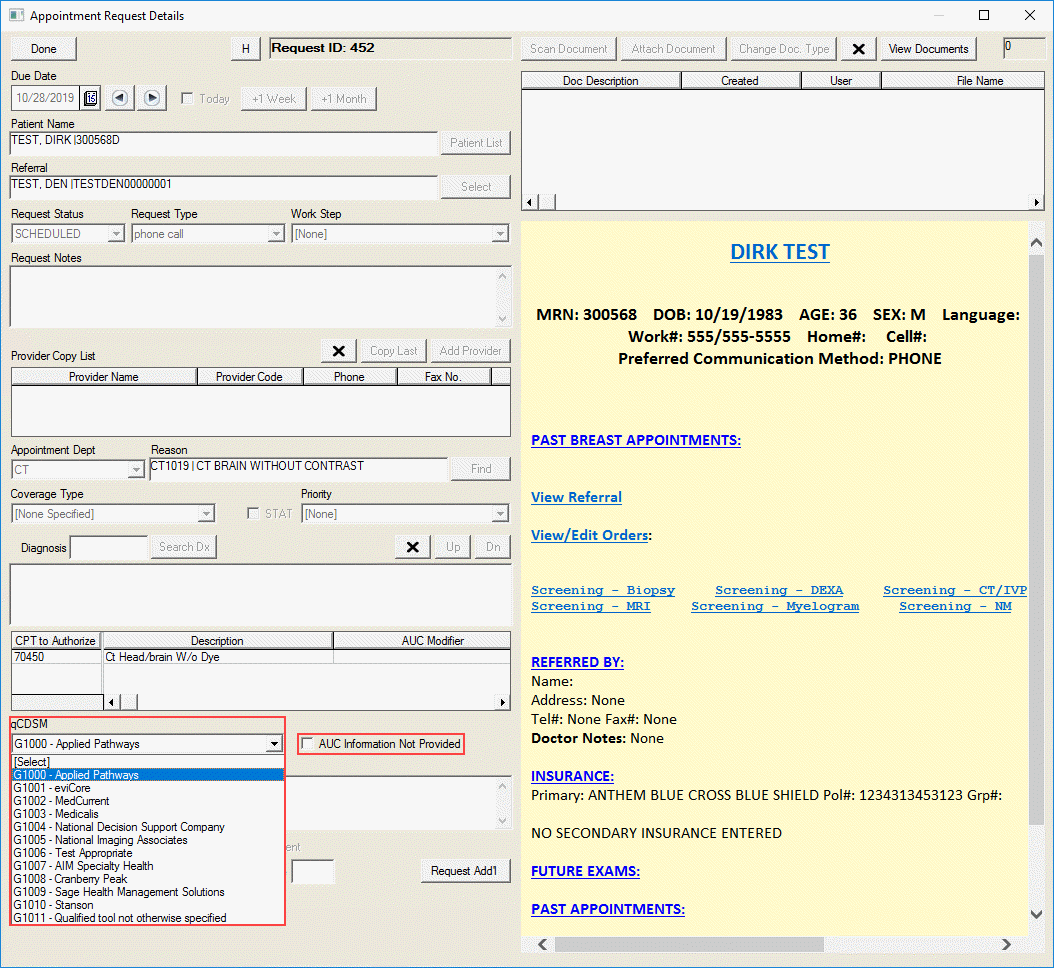
A save warning will appear when AuC information is required for at least one exam for a single Request ID and when either or both the qCDSM and modifier are blank.
If a valid qCDSM is received from the Ordering Provider, always use it to set the qCDSM, regardless of what is defined in the Referral Source.
If no qCDSM is received via interface from the Ordering Provider, then use the default from the Referral Source if it exists.
If an invalid qCDSM is received via interface from the Ordering Provider, then it will display in the qCDSM field, but it won't be saved until the user selects a valid one. If a valid qCDSM is not selected, the Save error message will appear.
In the absence of any qCDSM information, the user must select one OR check the "Not Provided" checkbox.

The AUC information can be added or edited after the appointment is booked.
- Click the Edit Appt from the appointment list.
- Select the qCDSM from the dropdown list on the qCDSM field OR Click the AUC Information Not Provided checkbox. AUC Information Not Provided checkbox adds the MH Modifier to the AUC Modifier field.

- Click the AUC Information button to open the Create One Time Authorization screen. The user can make changes in the AUC information on this screen.
If the user changes the Appointment Reason in Edit Appt Info, and if the CPT set for that changed reason is different based on the Billing Profile, a message displays that "The CPT codes for the selected reason are different than the original. Please update the AUC information. (OK/Cancel)"
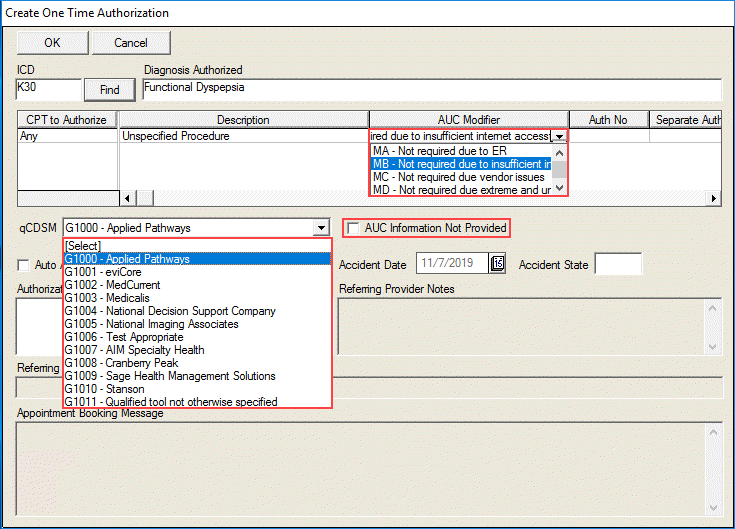
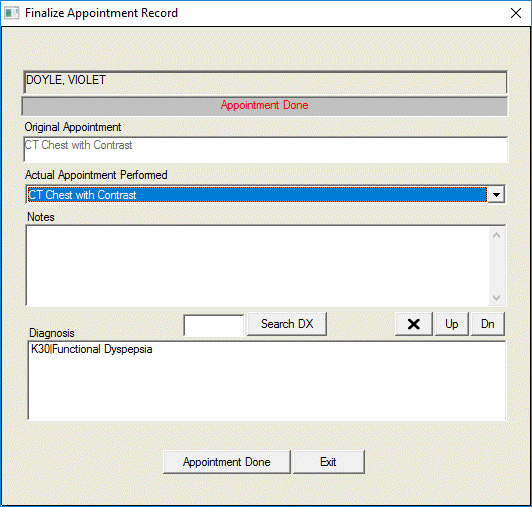
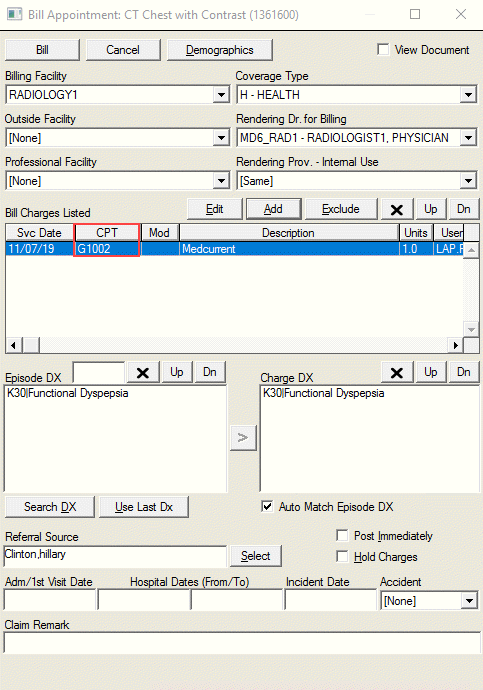
When an Appointment is Finalized (#FINALIZE), it triggers AUC Billing by sending a G Code for the qCDSM to CLBILL, as well as setting up the modifier for attachment to the service line items.