VIP Modification
Overview
VIP Access functions to select and manage users who have access to the patient's medical records. The list of available users includes only those who have security access to VIP patients. VIP access insures that only a sub-set of VIP-enabled users should access a given VIP patient. If VIP status is not enabled for the patient, this list is blank and selecting users has no effect on patient access until VIP status is selected.
What's New
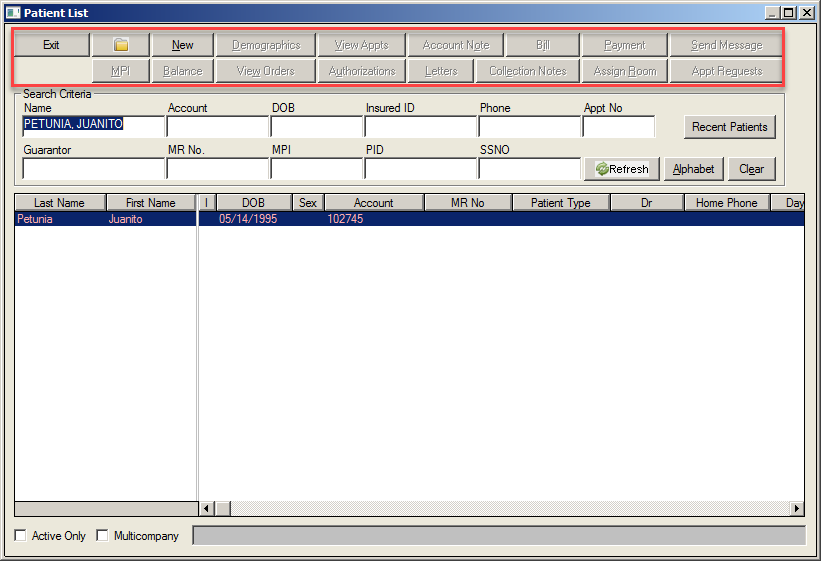
Ability to lock down all buttons in the Patient List screen using VIP rules for 1) users and 2) patients
- For patients: Create VIP status in the Demographics screen.
- For users: Set VIP access in the Security Setup screen. If not set, the user will not be able to view patient information from VIP accounts.
Enable
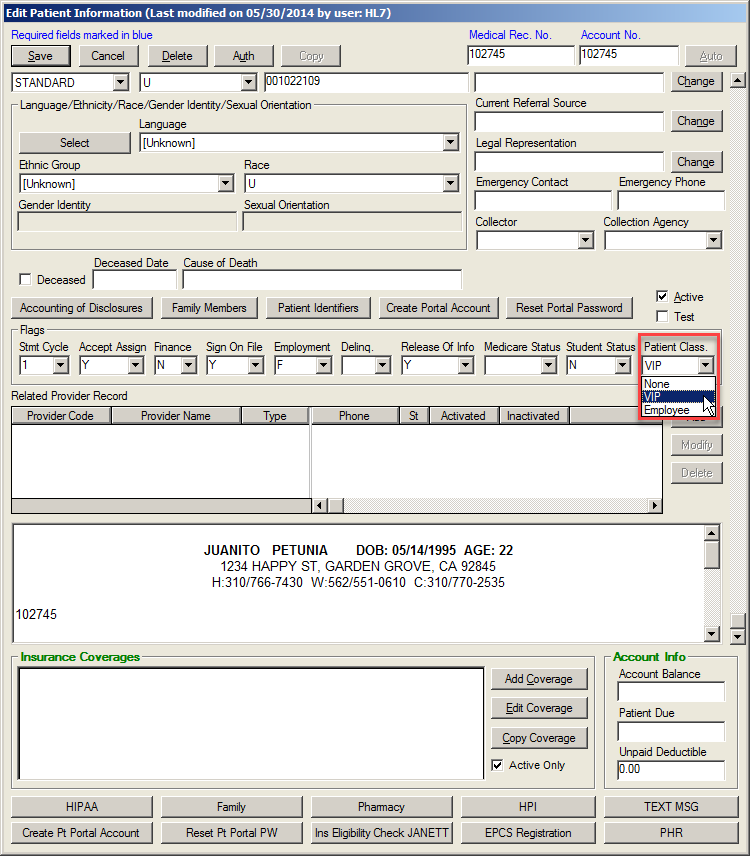
Create VIP Status
Select a patient from the Patient List screen.
Click the Demographics button to open the Edit Patient Information screen.
Scroll down to the Flags section.
Select VIP from the Patient Class dropdown list.
Click the Save button.
If the user doesn’t have VIP access, the buttons on the patient list are greyed out and locked down.
Set VIP Access for Users
Click the Security tab on the Main Menu screen.
Open the Security Setup screen.
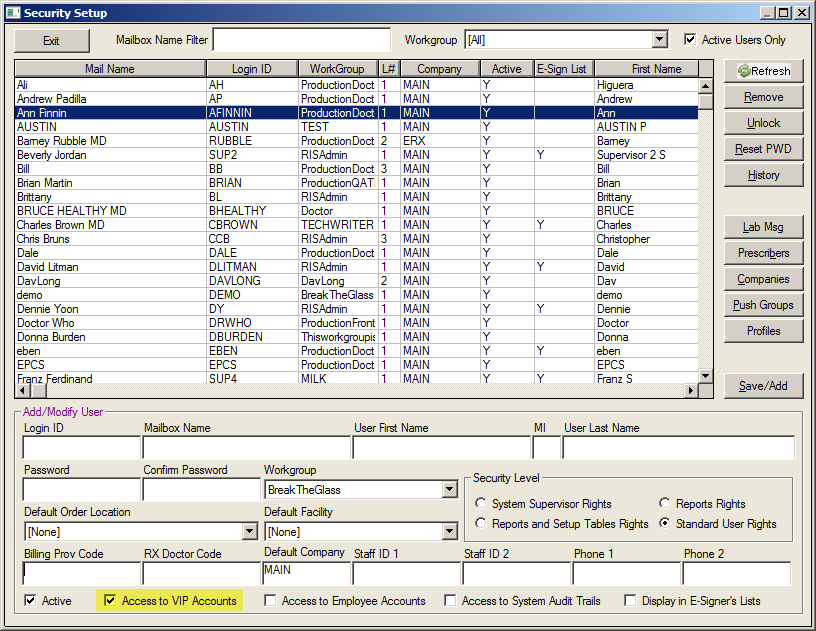
Double-click the user name.
Click the Access to VIP Accounts checkbox in the Add/Modify User section located along the lower edge of the screen.