Flagged and Moved Appointments
Overview
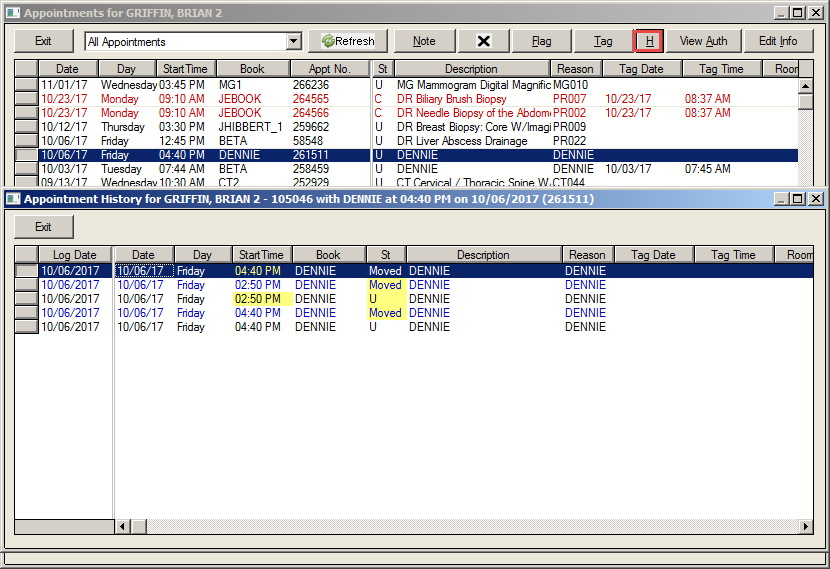
Flagging an appointment to reschedule a patient shows the same flag status (R) or (P) in the Appointment History screen as if the appointment is moved. There was no way of differentiating between an appointment that was flagged and one that was moved.
What's New
When an appointment is flagged as (R) Rescheduled, it is possible to view if the patient has been rescheduled or the appointment has been moved.
Instructions
Click the appointment in the Master List.
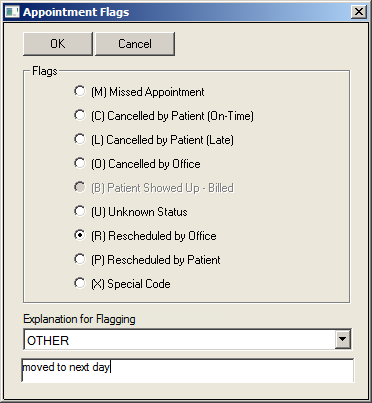
Click the Flag button.
Click the (R) Rescheduled by Office or (P) Rescheduled by Patient.
Select the Explanation for Flagging from the dropdown list.
Enter desired notes in the free text field.
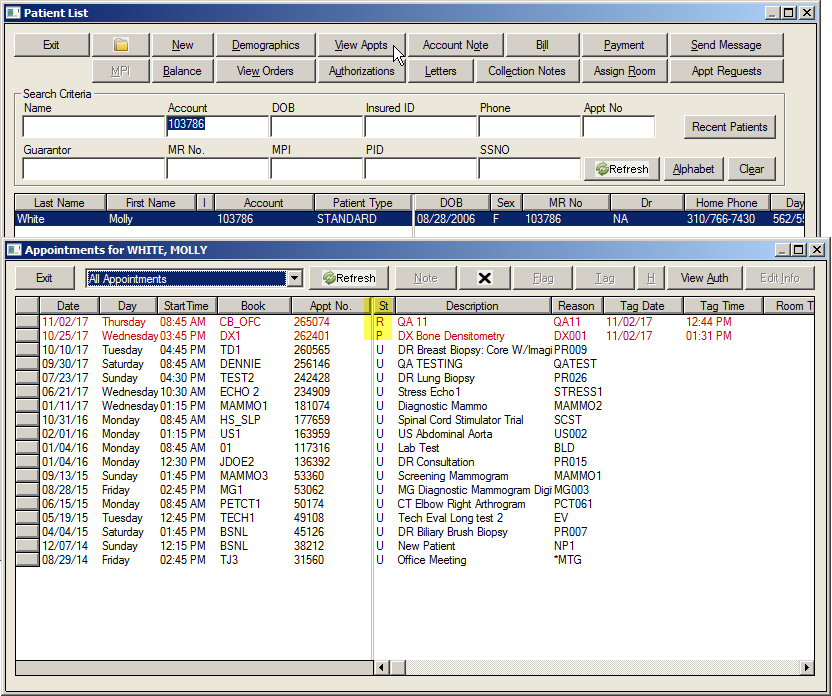
Open the Patient List screen for the selected patient.
Click the View Appts button. The flagged appointments appear in red. In the Status (St) column, an R shows an appointment Rescheduled by Office or a P shows an appointment Rescheduled by Patient.
Select a desired appointment.
Click the History (H) button. In the Status (St) column, Moved shows an appointment that has been moved to another date and time.