Delete/Inactivate Labs
Overview
Lab results listed in the View Diagnostic Test Results screen were unable to be deleted or inactivated if the results were entered incorrectly for some reason.
What's New
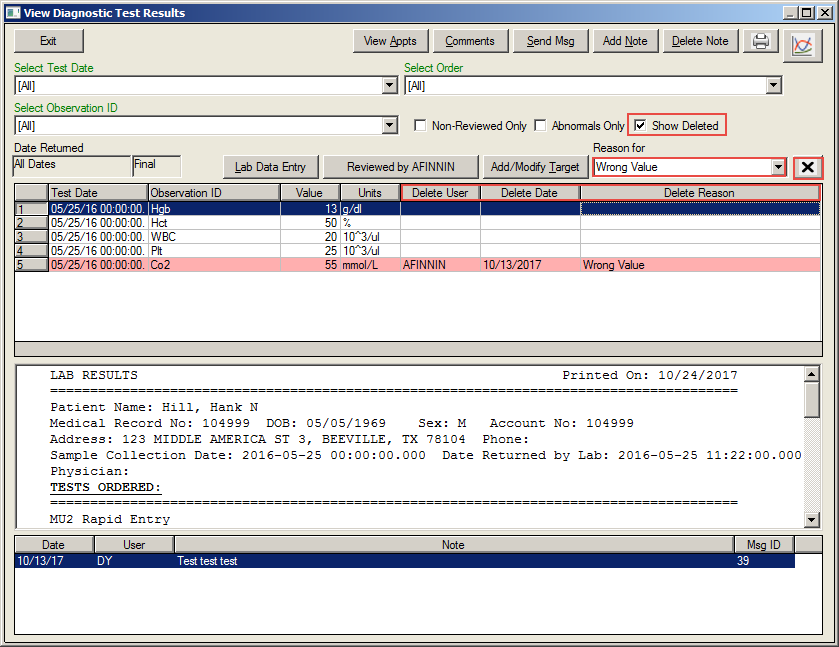
It is now possible to inactivate Labs (with Reason). A checkbox can be checked to show deleted labs. Deleted labs will be shown highlighted in red. However, only labs added in the application can be deleted. Labs from an outside source can not be deleted.
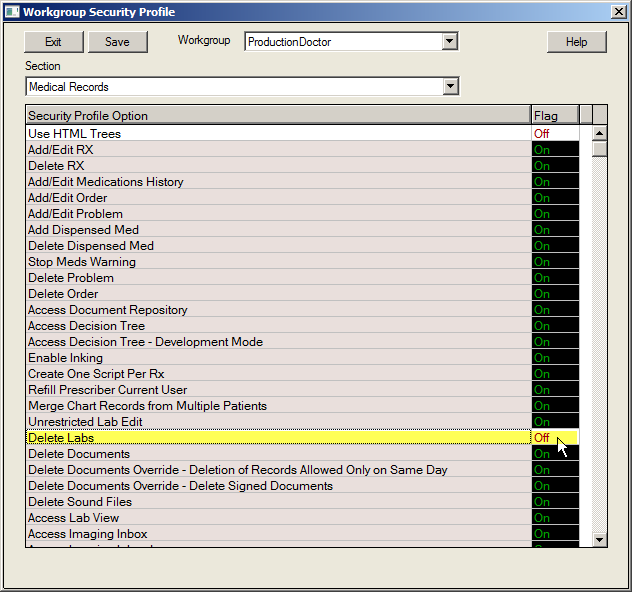
Permissions to delete labs can be set by workgroup
Click the Security tab on the Main Menu screen.
Select the desired user from the Security Setup list.
Click the Profile button to open the Workgroup Security Profile screen.
Select the desired workgroup from the Workgroup pulldown list.
Select Medical Records from the Section pulldown list.
Click the Delete Labs option to turn it ON.
Click the Save button to return to the Security Setup screen.
Click the chart icon on the Patient List screen.
Click the Labs icon on the Decision Tree menu to open the View Diagnostic Test Results screen.
Select the observation that you want to delete.
Select the reason for deleting from the Reason for dropdown list.
Click the delete box (X)
Click the Show Deleted checkbox to show the entry which has been deleted. It will appear in the list with a red shading.
Note: Reviewed labs or External labs cannot be deleted.