Collection Detail
The Collection Detail View screen displays every charge item with a balance for all patients that meet the criteria requested by the collector. The search criteria includes patient type, rendering doctor, aging, cutoff bill date, minimum balance, denial codes, payment criteria, provider, and facility.
Select the Collection Detail button from the Workflow View screen, which will launch the Collection Detail View screen.

Enter or select the desired filtering criteria, then click the Refresh button.
Select the desired entry and click the Coll. Notes button to open the Collection Worksheet to view the collection account for that entry. Scroll down using the scroll bar on the right hand side of the screen to view the entire account.
-
-
Move and rest your mouse pointer over various parts of the screen image below to display tips and important information about that area/button
-
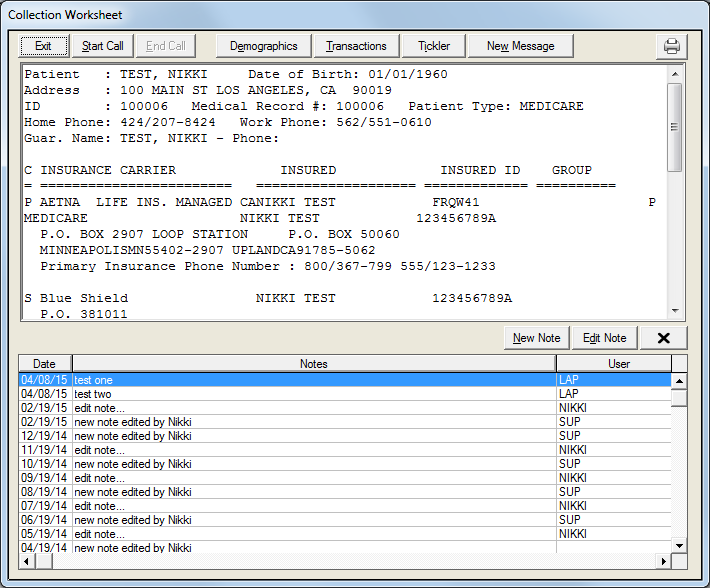
Click the Start Call button to begin the collection call.
Click the End Call button to conclude the collection call.
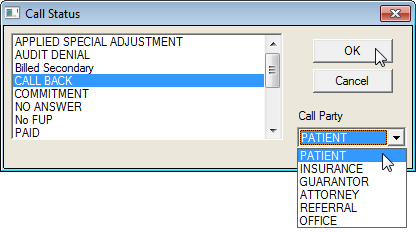
Click the status of the call on the Call Status screen.
Select the party that was called from the Call Party field dropdown list.
Click the OK button.
-
It is necessary to conclude the call by filling out the Call Status screen before exiting the Collection Worksheet.