Books View
The Books View displays patient appointments and open appointment times, so schedulers can easily view the schedule and communicate available appointment times. Additionally, when the security setting ‘Books View – Show Appt Description’ is enabled, the Books View displays scheduled patients’ appointment descriptions under their name, which allows users to easily see the type of appointments scheduled for the day. Managers can resize the columns on the Books View screen via a Workgroup Profile setting to allow more appointment description text to be visible when ther default width is too narrow. And, when users right click in the desired column and/or time, they can access the Appointment Detail, the Set Appointment from Clipboard, and the Set Appointment options.
Click on the Books View tab on the left sidebar in the Workflow View.
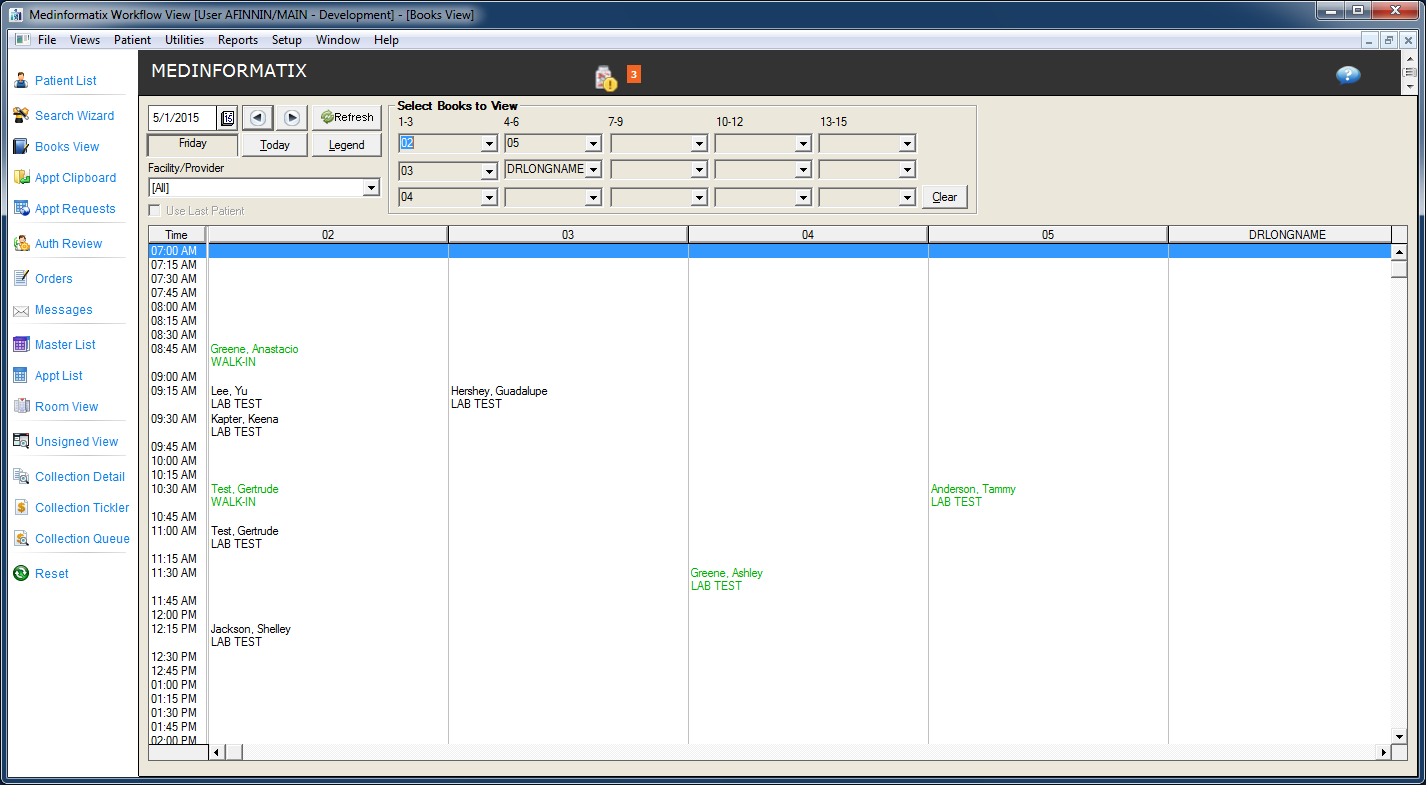
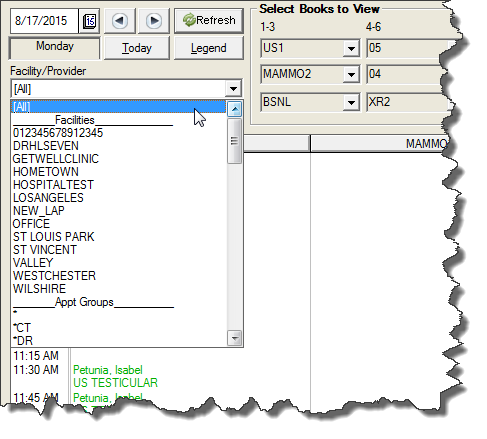
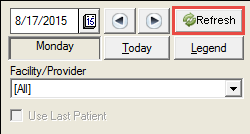
Using the Facility/Provider dropdown arrow, select the appropriate book set. The Facility/Provider dropdown list is populated with a number of possible book sets in addition to [All]. In order, the first items in the list are Facilities; then Appointment Groups, which are preceded by an asterisk (*); Providers, which are preceded by an “at” (@) sign; and then Providers preceded by a number (#) sign.
Using the dropdowns in the Select Books to View fields, select the Books for the appropriate providers to be displayed, if not automatically populated.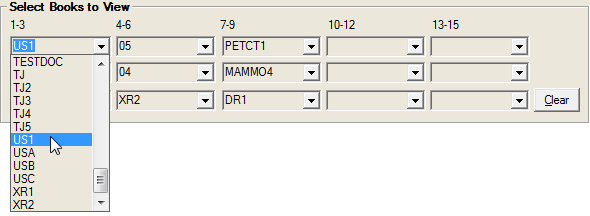
Click on the Refresh button so that the available time slots will be displayed for each provider/location.
Select a Book and right-click in an appointment listed in the column .
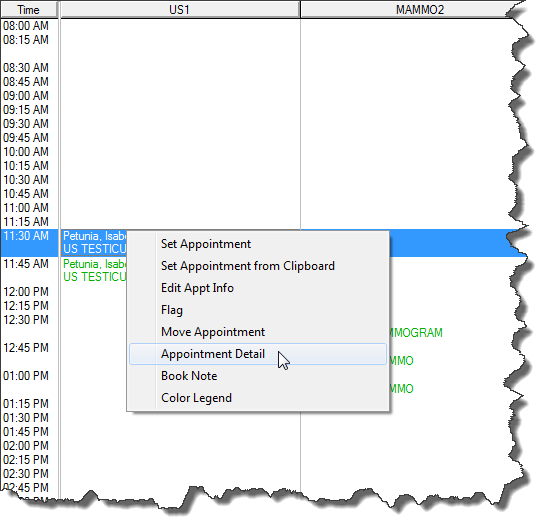
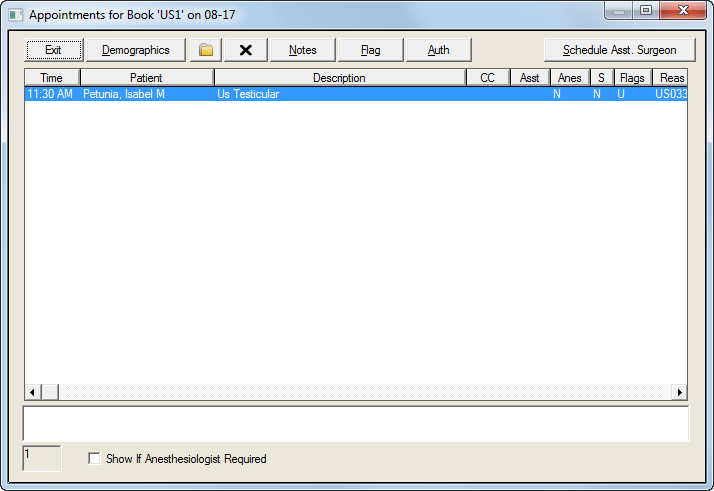
Select Appointment Detail to review the detail of the selected schedule
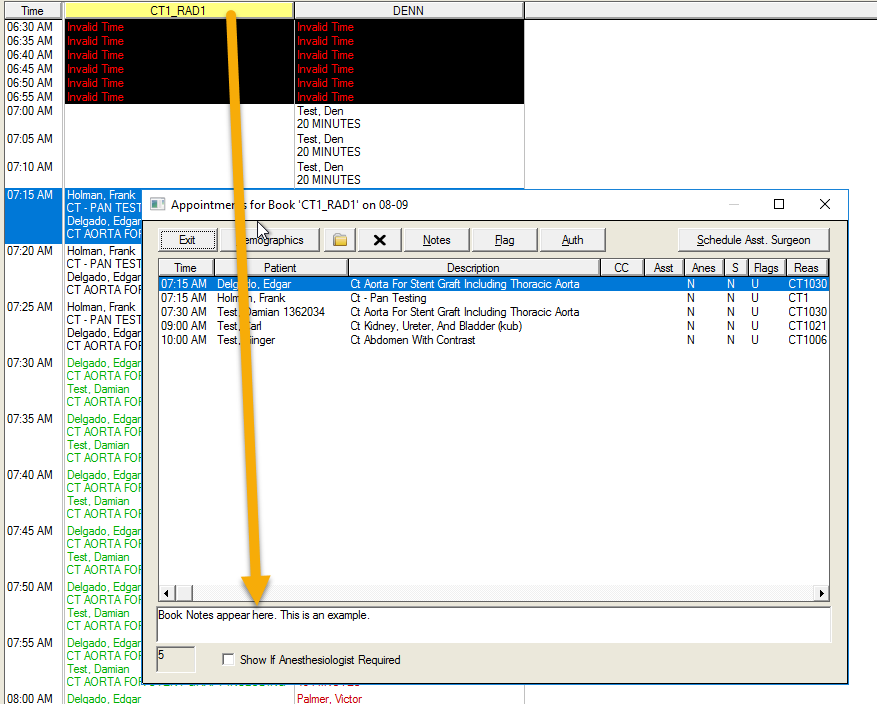
Also, when the Book Code in a column header is highlighted in yellow, that is an indicator that a Book Note is present. To view the Book Note, double-click on the highlighted area or right-click and select Book Nteo.