Apply Payments
Select the line item in the Transaction History screen to which you will apply the payment.
Typically, you can leave the payment type dropdown at its default of A – Any party payment by line item. This allows the application to choose the payor automatically based on the line item responsibility flag.
However, if a different payor selection applies you can select it here before entering the payment screenSee Payment Overview for more detail on the Transaction History screen
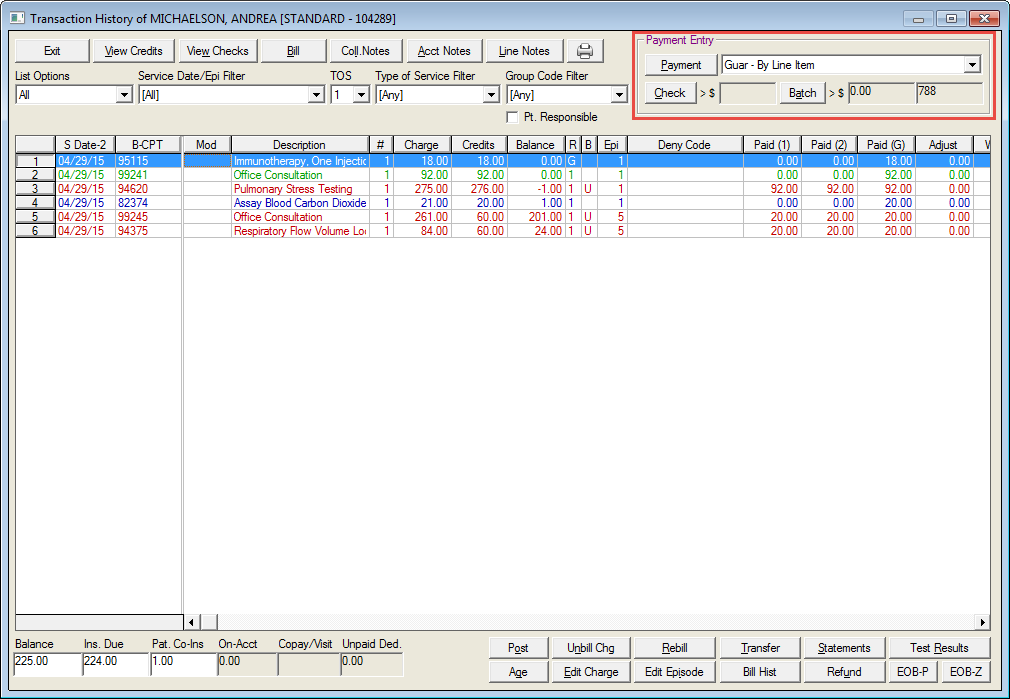
Click the Payment button located in the Payment Entry section. The Pay Line Item Window will display
Move and rest your mouse pointer over various parts of the screen image below to display tips and important information about that area/button
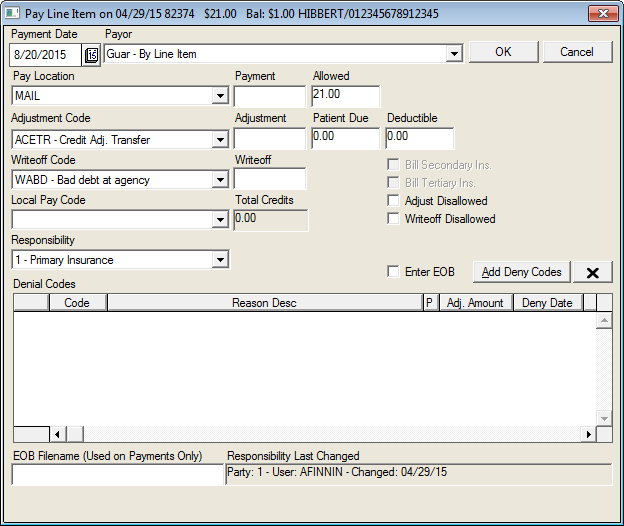
Set the default Writeoff Code for every insurance so that it auto selects in the payment screen
In MedInformatix:
An Adjustment is something you CHOOSE to do. A Write-off is what you are forced to do based upon your contract with the payers.
This guideline is applied because when Batch Payments or ERN's are processed, the "contractual adjustments" can only be done with a write-off code.
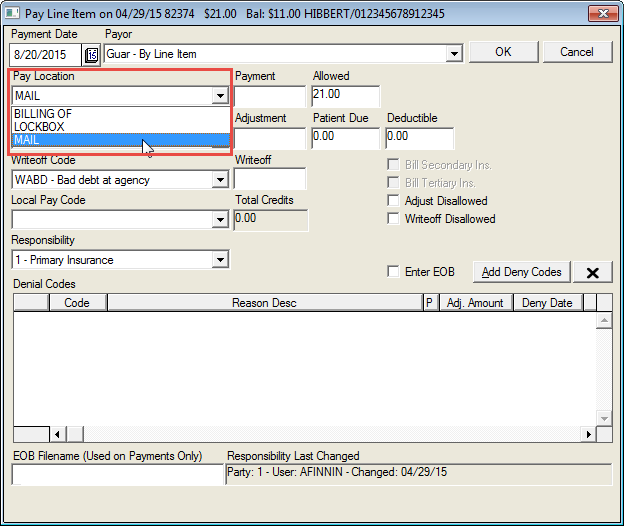
Select the appropriate payment location from the Pay Location field dropdown list if necessary.
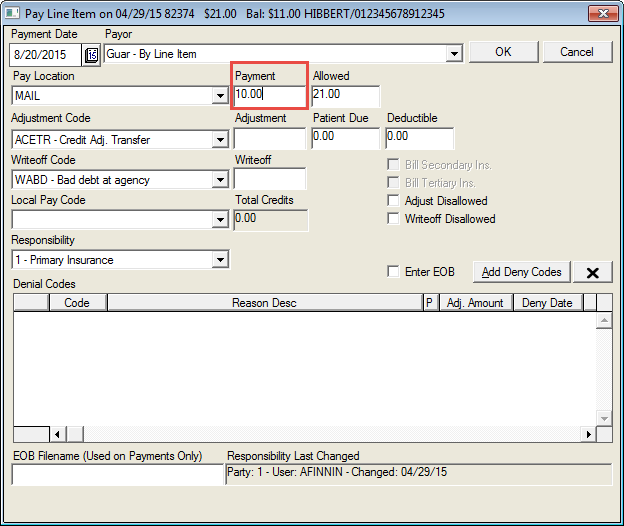
Enter the amount of the payment in the Payment field and click OK
The system will assume decimal places
For e.g. if entering 15.00 dollars, just enter "15" and press <tab>
Calculate an Adjustment or Write-off
If the payment amount and allowed amounts are less than the line item balance due:
Enter the actual amount of the payment in the Payment field.
Enter the new maximum amount allowed in the Allowed field and pres the Tab key.
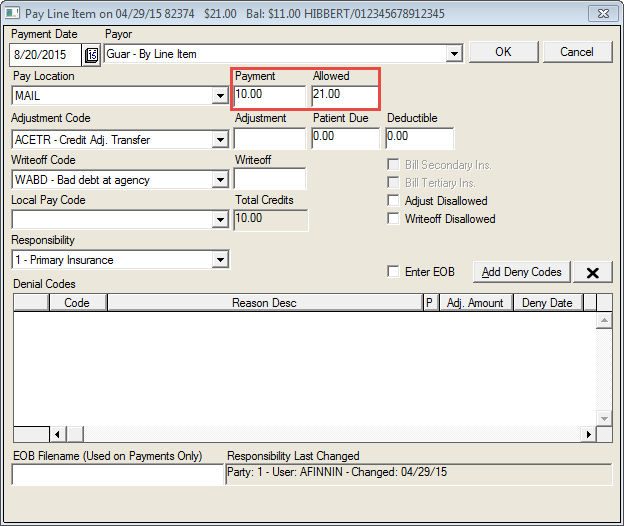
The system will automatically calculate the Writeoff amount
Click the Write-off Disallowed checkbox, if appropriate.
When using this feature, users will then need to use the write-off code from the Write-off Code dropdown list. When making primary payments, if there is not a default Write-off Code entered for the patient’s insurance carrier, the system will remember the last setting of the Write-off Disallowed and Adjust Disallowed boxes in the Payment by Line Item window. If the default setting is a check in a Write-off/Adjust Disallowed box, the system will take no action to enter a disallowed amount unless a payment is entered. The Write-off/Adjust Disallowed box will always default to uncheck when the user is not entering a primary insurance payment. To disable auto-checking of the Write-off Code box, the ‘Write-off Disallowed Checked if Ins Write-off Code Specified’ Security Profile should be disabled.
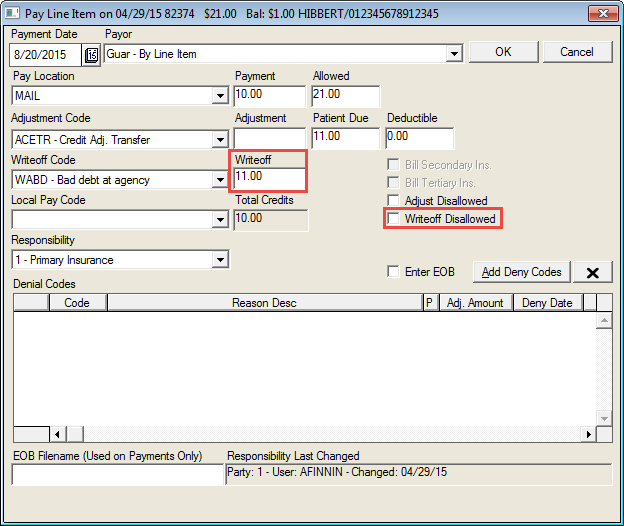
Select the appropriate the responsible party for the remaining balance on the charge from the Responsibility dropdown.
Click the Enter EOB checkbox if desired.
Click the Add Deny Codes button to select a code from the Denial Codes list to indicate the insurance denial reason if necessary.
Click the OK button.
After entering all payments for this check, click on the Check button to enter the check description information in the Payment Information screen.
Click the OK button to exit the screen or click the Cancel button to cancel.