Add Authorization
When a patient is scheduled for an appointment, the system will automatically create a Patient Authorizations Record for the appointment. It will also create an Authorization Record for scheduled exams and populate the record with Referred By, Insurance Carrier, Appointment Reason Code and Procedure Authorized fields.
In the event that the patient does not have an authorization, for example a walk-in, an authorization can be created at the time that the patient arrives or even after the patient has been seen.
 There must be an authorization in order to 'Finalize' a patient's appointment.
Click on the Authorizations button on the Patient List screen, the View Auth button on the Master List screen or the View Auth button on the Appt List screen which will open the Patient Authorizations Records screen.
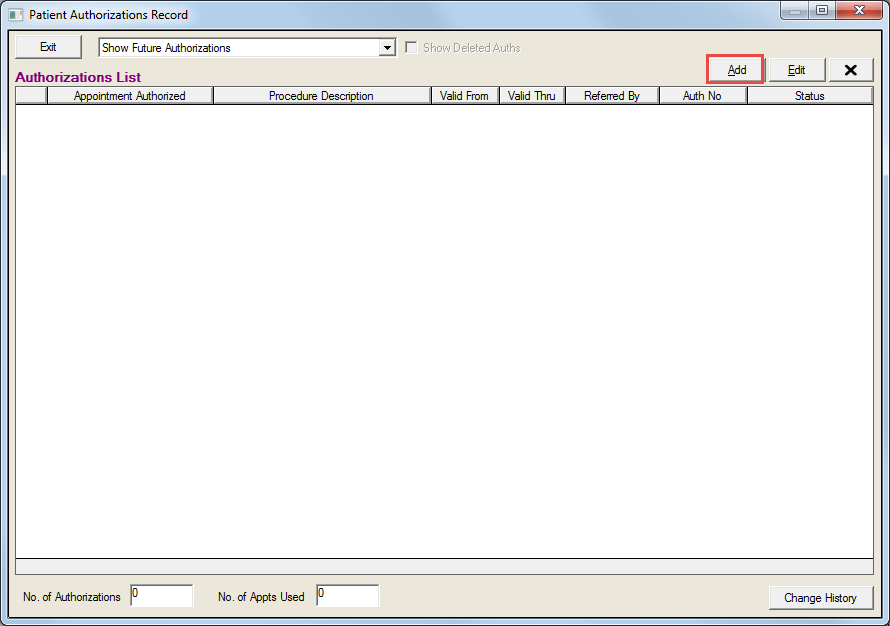
Click the Add button to open the Create New Authorization screen. Patient information and current dates will already be entered.
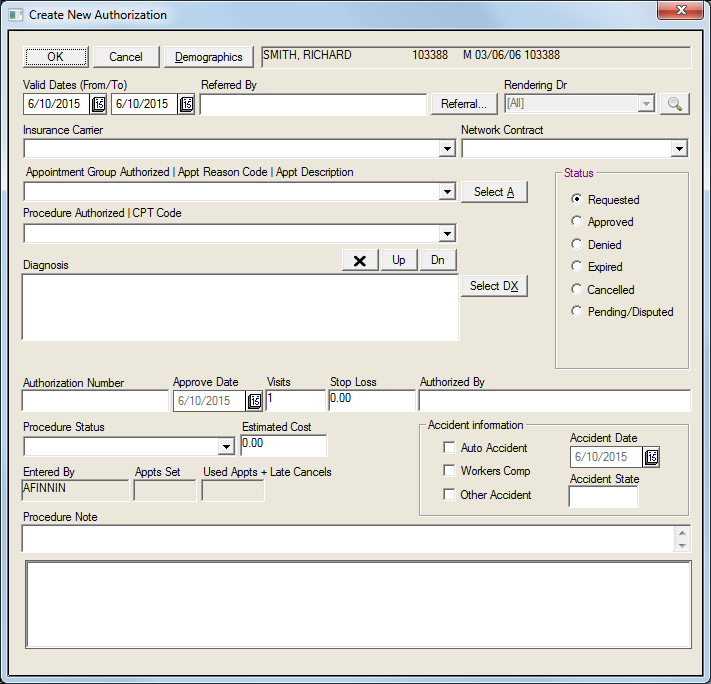
Click the From and To dates of the authorization to access the calendar icons. This will change the dates that the authorization is valid. All claims with charges within the valid date range will include the Authorization information on the claim.
The Referral field will default to the referral source listed in the Demographic screen. To change the referral, click on the Referral button to open the PCP/Referral Source List and Search screens and select the referral.
Select the rendering provider from the Rendering Dr dropdown list.
The Insurance Carrier displays the attached insurance coverage(s) entered in the Demographics screen. If not listed, add or edit the Insurance Coverage field on the Demographics screen.
Select a network contract, if desired, from the Network Contract dropdown list.
Click the Select A button to open the Appointment Reason Selection screen. Select the appropriate Appt Group from the dropdown list to choose the authorized appointment group then select the reason for the appointment from the Reason list. The appointment reason in the authorization must match the one listed on the patient appointment.
Select the authorized procedure code from the Procedure Authorized/CPT Code dropdown list.
Click the Select DX button to search for and select the authorized diagnosis. An unlimited number of diagnosis codes may be selected. The Up, Down and X buttons allow the user to change the order of or delete the selected diagnoses.
Click in the appropriate status of the authorization in the Status field. Choosing Approved will allow the authorization to appear on the claim.
Enter the appropriate information in the Authorization Number, Approve Date, Visits, Stop Loss and Authorized By fields.
Use the Procedure Status dropdown list to choose the current status of the authorized procedure.
Enter the cost of the procedure in the Estimated Cost field, if necessary.
If appropriate, enter any information specific to the patient or procedure in the Procedure Note field, which is a free text field.
If appropriate, enter the number of appointments scheduled in the Appts Set field and the number of used appointments in the Used Appts+Late Cancels field. A Used Visit is one where the patient actually arrived and was tagged in by the Front Desk Staff.
Click the OK button to save changes and to return to the Patient Authorized Record screen.