Add a Diagnosis
Clicking on the DX link opens the Problem List screen where the user can view the patient’s diagnosis. The Add Dx button is used to choose a diagnosis and enter it into the Problem list. More than one diagnosis can be entered in the Problem list, but each diagnosis must have either an ICD-9 or an ICD-10 diagnosis code for billing purposes.
Select a patient from the Master List or appointment List screen or search for the patient on the Patient List screen.
Click the  button to open the patient's chart.
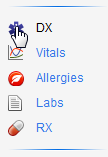
Click the Dx button on the Decision Tree menu. This opens the Problem List screen for the selected patient.
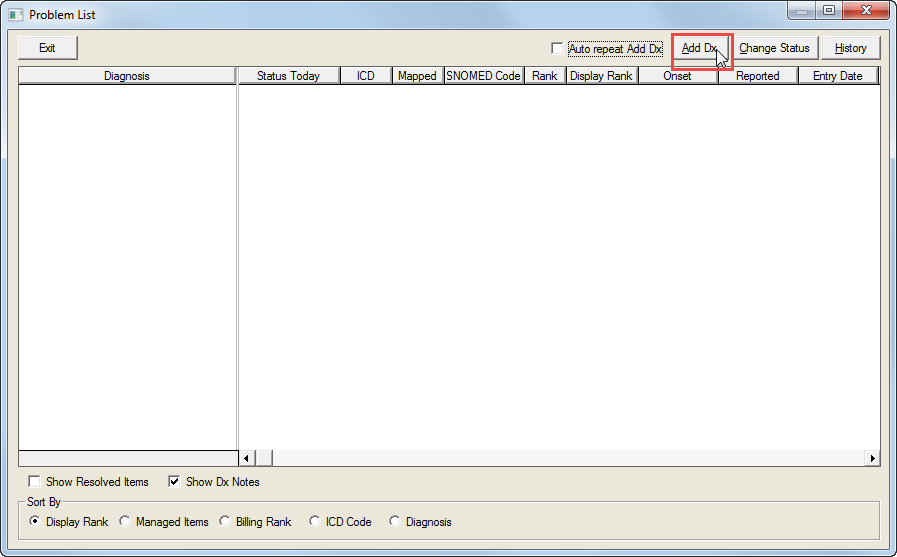
Click the Add Dx button to open the Add Diagnosis screen.
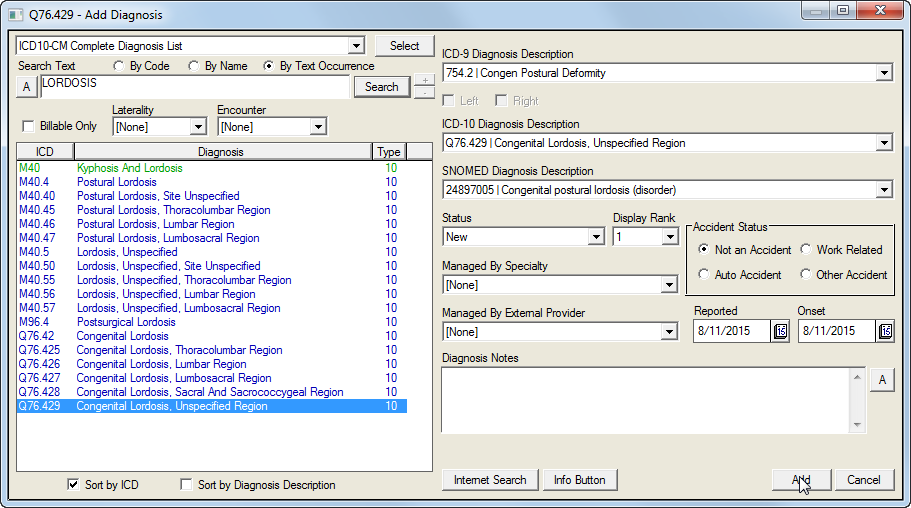
Select a list of diagnosis codes from the dropdown list. The field will default to ICD 10 CM Complete Diagnosis List.
Click the By Code, By Name or By Text Occurance buttons.
Enter text or codes into the Search Text field.
Click the Search button.
Click either the Sort by ICD or the Sort by Diagnosis Description checkbox.
Click the Billable Only button if appropriate. This is an optional filter.
Select a laterality from the Laterality dropdown list. This is an optional filter.
Select an encounter from the Encounter dropdown list. This is an optional filter.
Click the appropriate diagnosis from the Diagnosis list.
Click the Select button.
Select diagnosis from the ICD-9, ICD-10 and SNOMED pull-down lists.
Add Status and Display Rank from the pulldown lists.
Click one of the boxes in the Accident Status section: Not an Accident, Work Related, Auto Accident or Other Accident.
Select an entry in the Managed by Specialty, Managed by External Provider, Reported and/or Onset dropdown lists if desired.
Enter text into the Diagnosis Notes field if desired.
Click the Internet Search button to find websites with information on the diagnosis.
Click the Info Button for an in-office patient education resource.
Click the Add button to enter the diagnosis information in the Problem List screen.
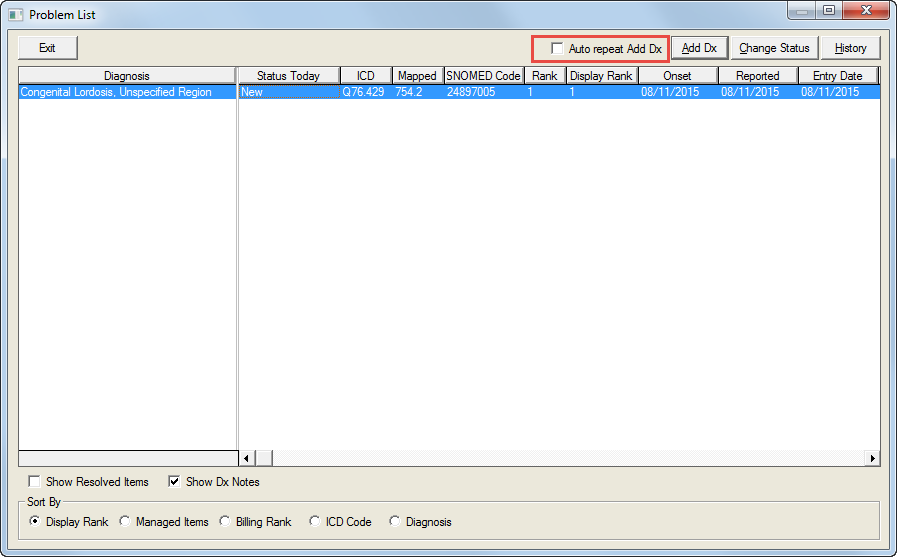
Click the Add Dx button again to add another Diagnosis to the Problem list, or click the Auto repeat Add Dx checkbox to add multiple diagnoses into the Problem List.
Click the Exit button to save the information and close the screen.