Transcriptionist
Transcriptionists work almost exclusively from the Orders screen in MedInformatix. Each time a radiologist completes dictation on an exam the Transcription department receives an order to transcribe the dictation.
To Transcribe a Report from a Dictation
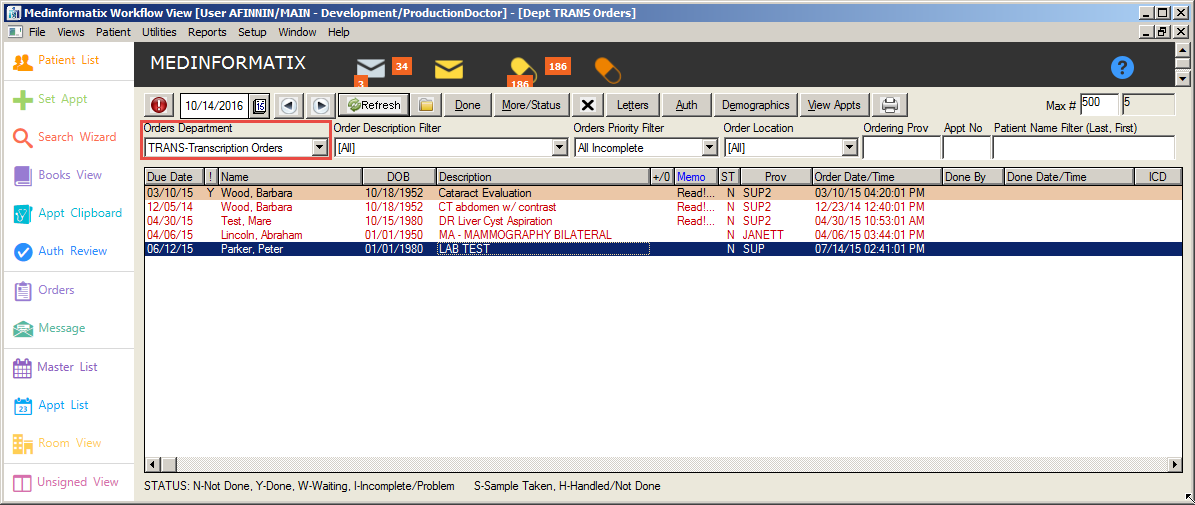
- Click the Orders icon to open the Orders screen.
- Select TRANS-Transcription Orders from the Orders Department pulldown list to open the list of transcription orders.
Note: ‘STAT’ orders will appear at the top of the orders list and are highlighted in a peach color. Additionally, a ‘Y’ will appear in the Stat (!) column.
- Double-click on the desired order, which will launch the Transcriptionist Decision Tree for that patient.
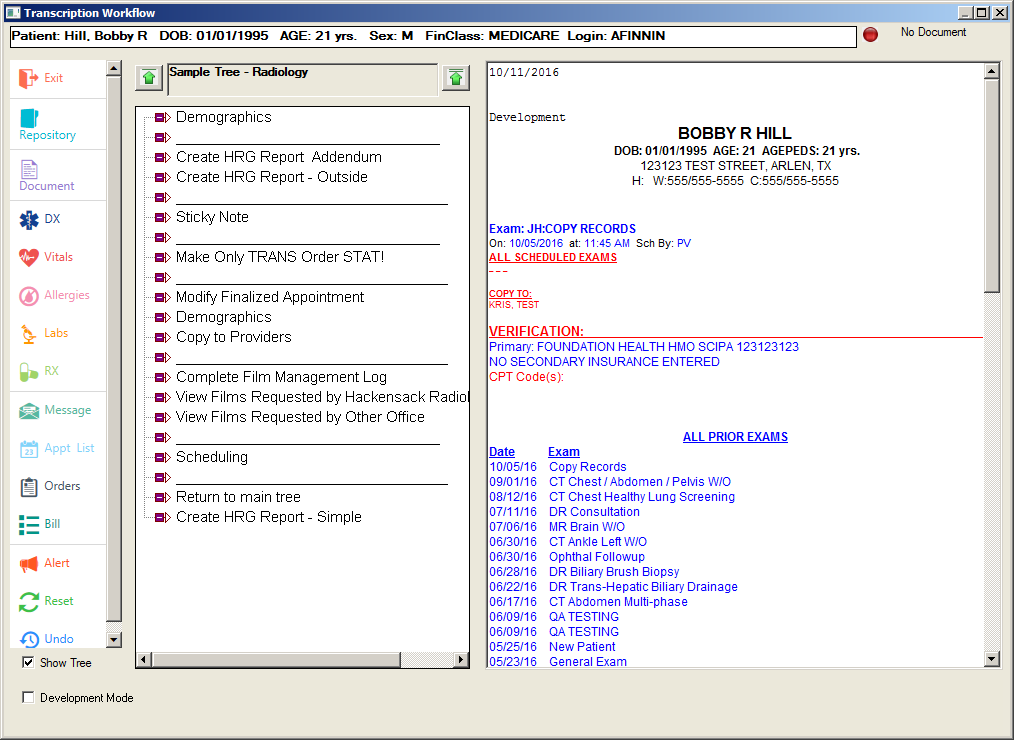
- Click on the Listen to Dictation branch, which will launch the transcription software.
- Select a Document Type from the Save Document-Select Chart Selection screen.
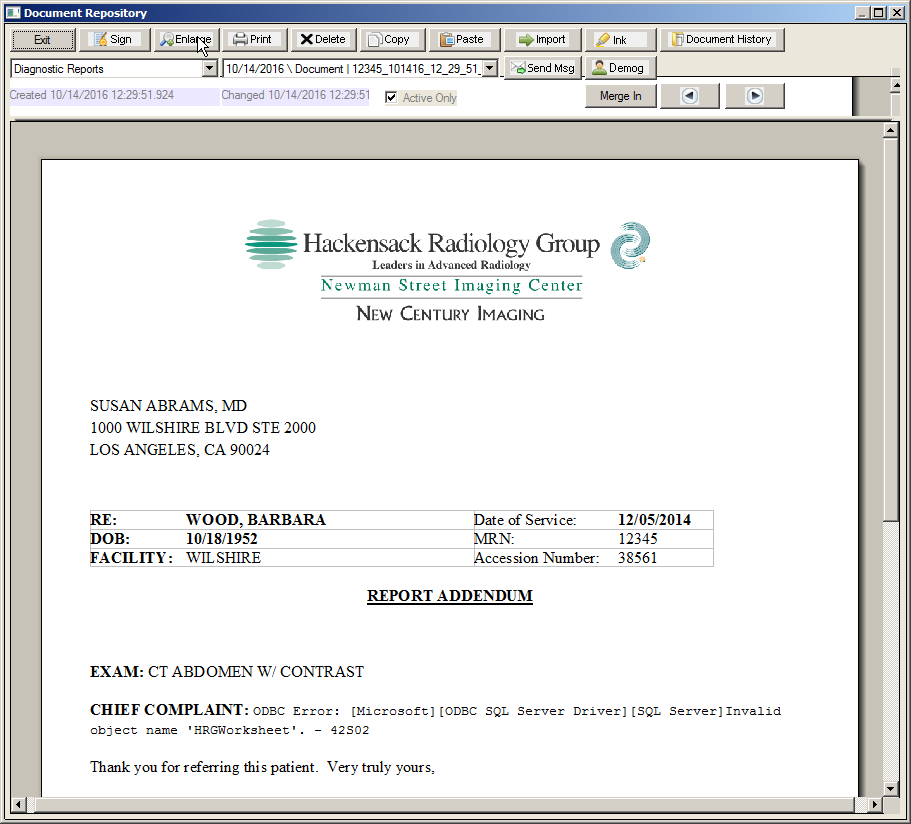
- The document will open in the Document Repository screen.
- Click the Enlarge button to display in the Enhanced Editor screen. The Enlarge button will open the document in an MS Word window.
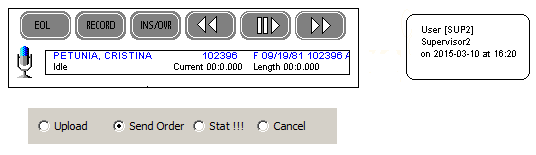
- The dictation can be started via the foot pedals of the Philips Transcription system. The Foot Control has three switches: middle, right and left switch. Their functions are:
- When you press the middle switch, Fast Forward is started; when you release it, Fast Forward is stopped.
- When you press the left switch, Fast Rewind is started; when you release it, Fast Rewind is stopped.
- When you press the right switch, Playback is started; when you release it, Playback is stopped.
- After the dictation has been transcribed, click the Select User button in the lower left corner and select the Radiologist that dictated the report. Click Select.
- Click on Save to Chart, then Exit to close the chart to return to the Orders List.
- The system can be configured to automatically mark the Transcription orders done when the dictation is listened to, or Transcriptionists can mark the order Done manually.