BEFORE REGISTERING WITH EXOSTAR

Authy App: Install and begin setup of the Authy App. This will be completed during your Exostar Registration. NOTE: THE APP MUST BE INSTALLED ON A PHONE, NOT AN iPAD, TABLET OR DESKTOP.
Be sure to enable NOTIFICATIONS FOR THIS APP under the phone SETTINGS.
Follow the instructions from PAGE 3 TO PAGE 6 for the Authy App.
Order hardware token (fob): Each provider will receive one free hardware token (fob) as part of the registration. This device is used to receive a One Time Passcode (OTP) when routing prescriptions for controlled substances. The hardware token (fob) must be in hand prior to registering for EPCS. The fob can be shipped to the practice or home address. Please allow 3-5 days for delivery.
Follow the instructions from PAGE 6 TO PAGE 9 to order the fob.
Name Verification: If a provider is unable to successfully identity proof with Exostar by answering the Knowledge Based Assessment (KBA) questions, the provider has the option of using a webcam method option. Please make sure that the name being registered is the same name that shows on the legal document (driver’s license or passport). If this does not match, update the information within MedInformatix before starting Exostar registration. Please reach out to MedInformatix for assistance. If the information is not updated, the provider will not be approved during your webcam process with Exostar.
Midlevel Provider Registration: Depending on the individual state regulations, if the provider has a Supervising Doctor credential, the registration process needs to be modified. Please contact MedInformatix directly for further information.
DOWNLOAD AND SETUP AUTHY APP
Before beginning the Exostar identity proofing process, it is best to have the Authy app downloaded and setup on the provider’s mobile device. Below are step by step instructions for this process.

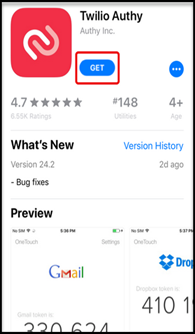
Download the app – Search for Authy app
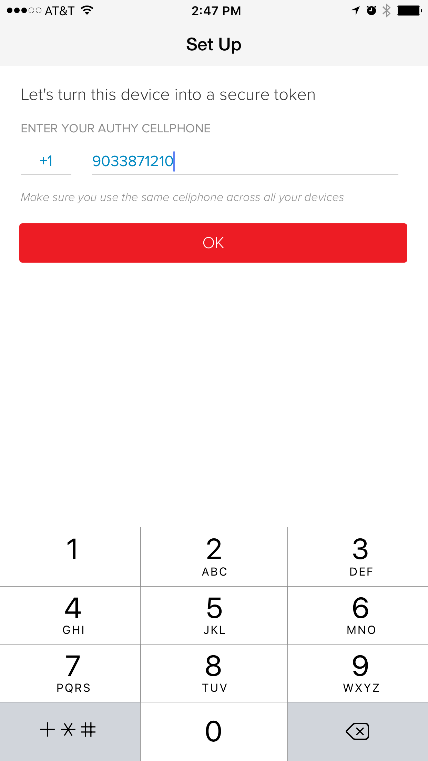
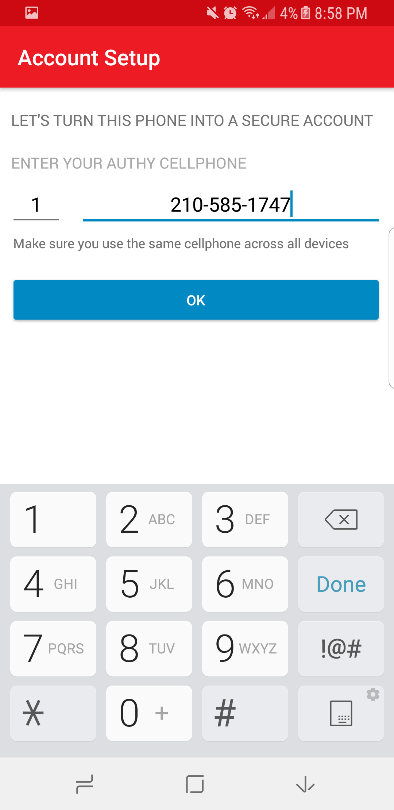
Enter your phone number – Choose the country code from the dropdown. Enter the provider cell phone number. THE APP MUST BE INSTALLED ON A PHONE, NOT AN iPad, TABLET OR DESKTOP.
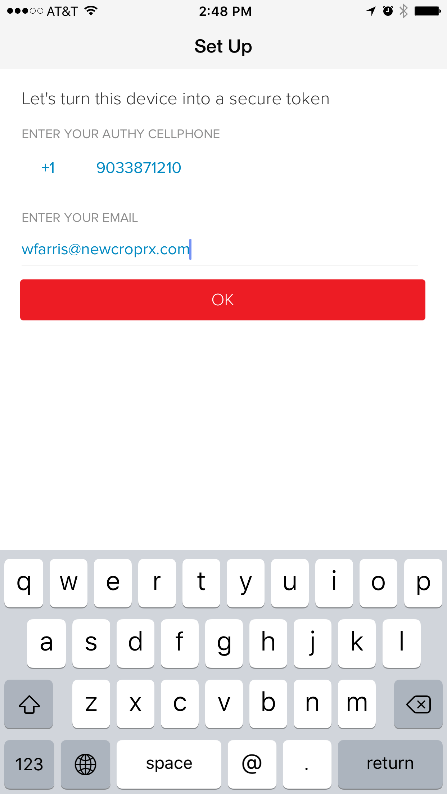
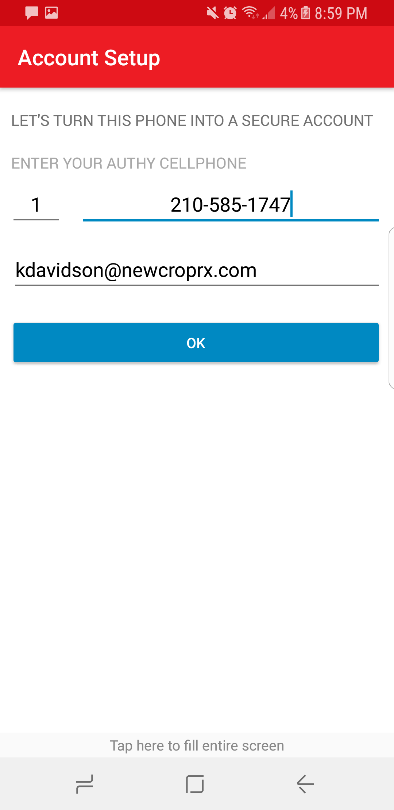
Enter email – Enter the provider email address.
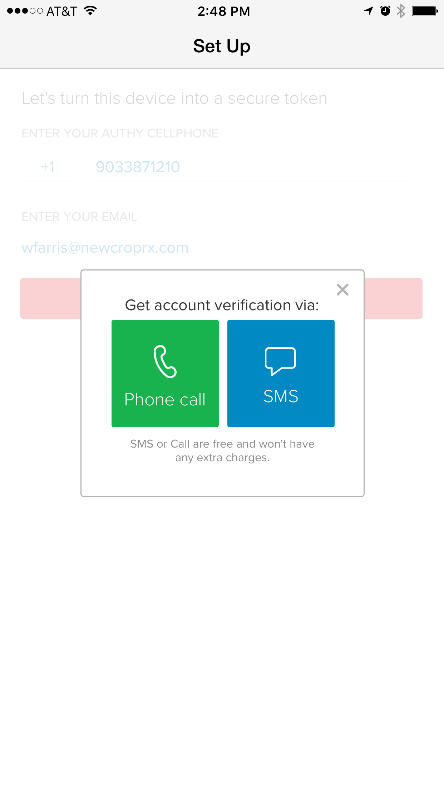
Receive and enter verification code – Choose how to receive your activation code, Text or Voice call. Retrieve and enter the activation code.
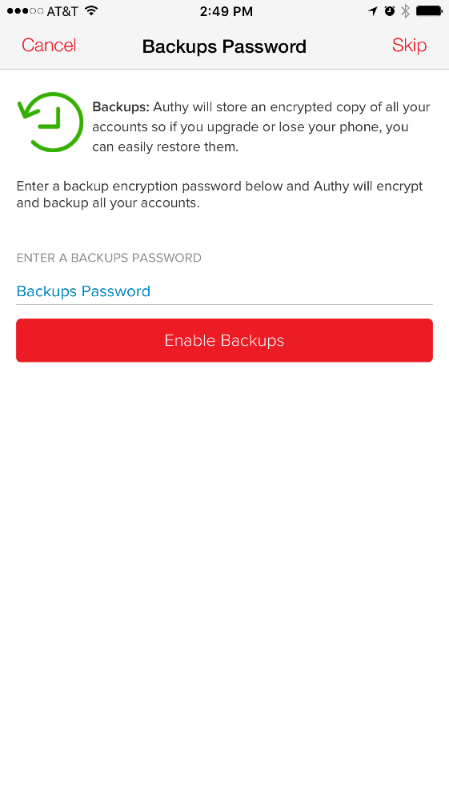
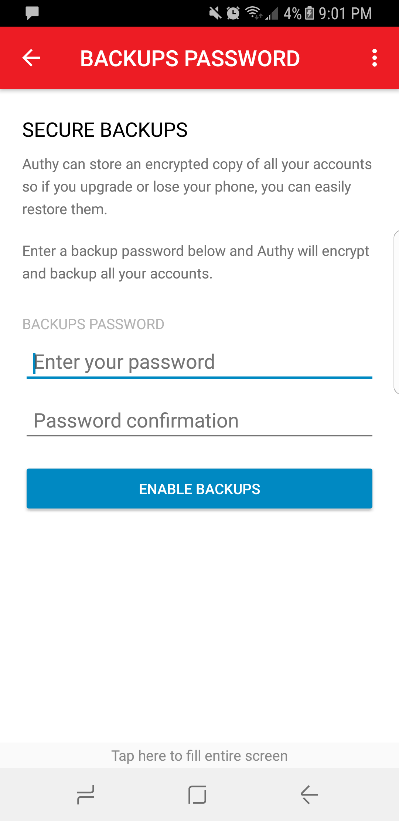
Backup password – Create a password for backing up information. (This is optional.)
Notifications – Notifications must be allowed for the Authy app.
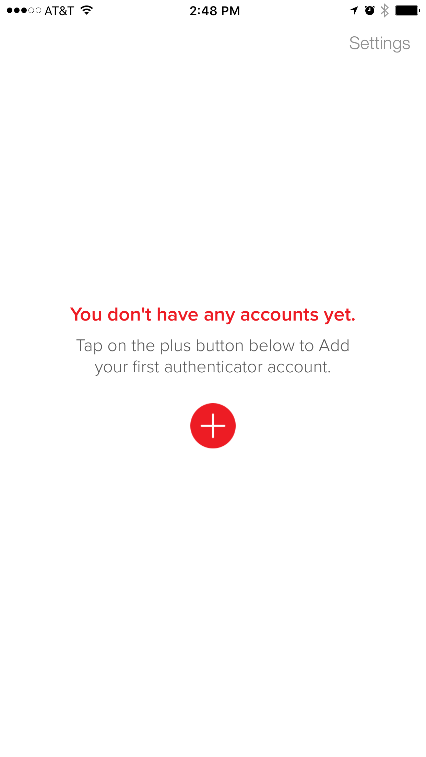
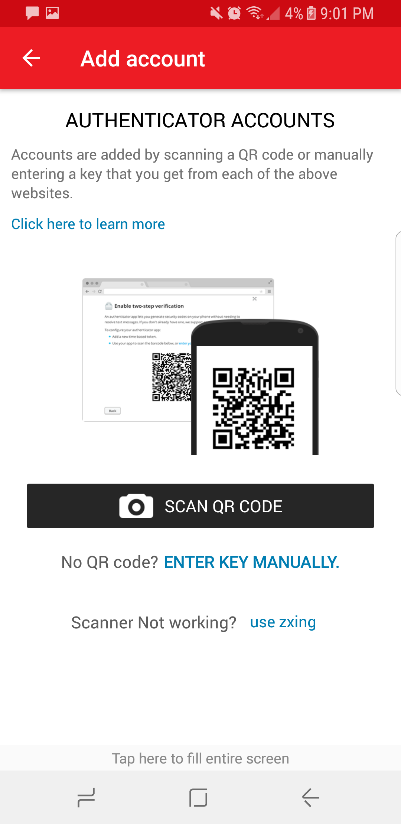
An option to add an account will appear.
If the Authy App is installed BEFORE the Exostar registration, please stop at this point.
It will be completed during the Exostar registration.
Setup Complete – Setup is completed when the app displays the 6-digit One Time Passcode (OTP).
Screenshots for both iPhone and Android are below.
For Apple watch users: There is an Authy app for Apple Watch. At this time, it is limited to ‘OTP’ mode only, so Push/OneTouch approval is not supported. However, the watch can work independently of the phone to which it is paired. The User just opens the Authy app on the watch, taps the token they want, and the code is displayed on the screen. The Authy watch app should automatically install when the Authy app is installed on the paired phone. You are not required to have/use an Apple watch.
Once the app has been downloaded and bound to your Exostar account, most iTunes and Google Play Store accounts will keep a copy in the cloud. This means that when a provider has a new phone or phone number, most times the provider can download the app from the cloud and will not need to reinstall from scratch or even access their Exostar account. If there are questions about this process, please contact NewCrop Customer Support for advisement.
 iPhone
Download: Phone number: Email:
Verification code: Add account: Password:
 Android
Download: Phone number: Email address:
Verification code: Add account: Password:
ORDERING THE HARDWARE TOKEN (fob)
The hardware token (fob) must be in hand prior to registering for EPCS. The fob can be shipped to the practice or home address. Please allow 3-5 days for delivery.
This must be completed under the provider login.
- Log in to MedInformatix
- Select a TEST Patient with complete Demographic information.
- Navigate to the Chart
- Select any prescription
- Select ‘Edit’
- Select ‘Dose Info Calculator’
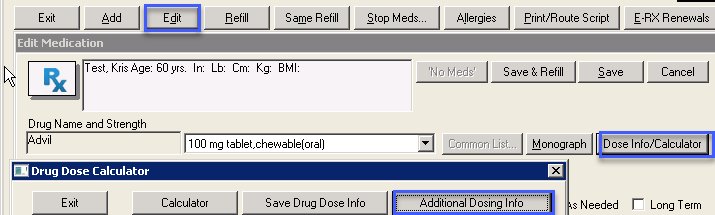 Select ‘Additional Dosing Info’
This will navigate to the NewCrop Portal.
Select ‘Allow blocked content’, if applicable.
Select ‘Prescriber Registration and EPCS Set-up’
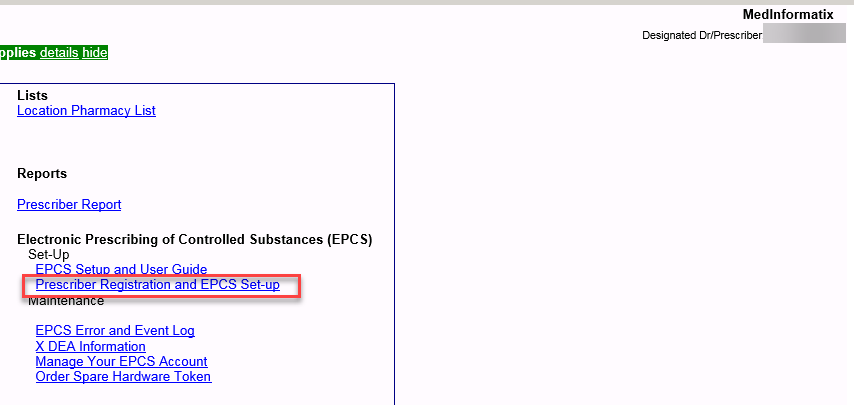
If presented, scroll down and select ‘I Agree’. This page is only seen once. 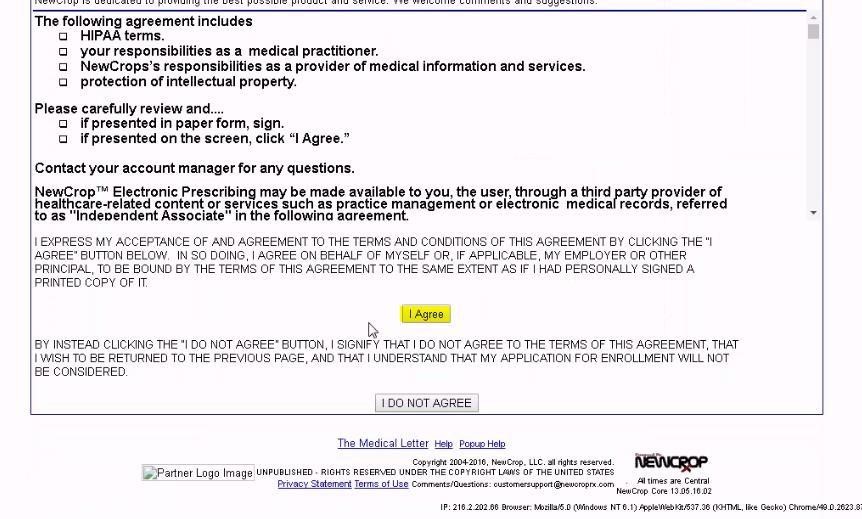
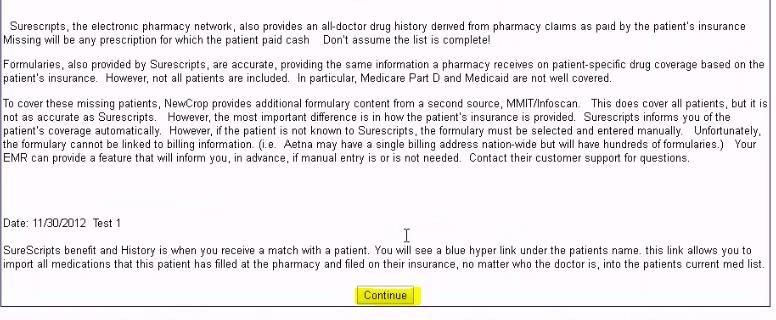
If presented, scroll down and select ‘Continue’. This page is only seen once.
BEGIN EPCS REGISTRATION PROCESS
Each provider will receive one FREE hardware token (fob) as part of the Exostar EPCS registration. The hardware token (fob) is a device to receive a One Time Passcode (OTP). It can be shipped to the practice or home address.
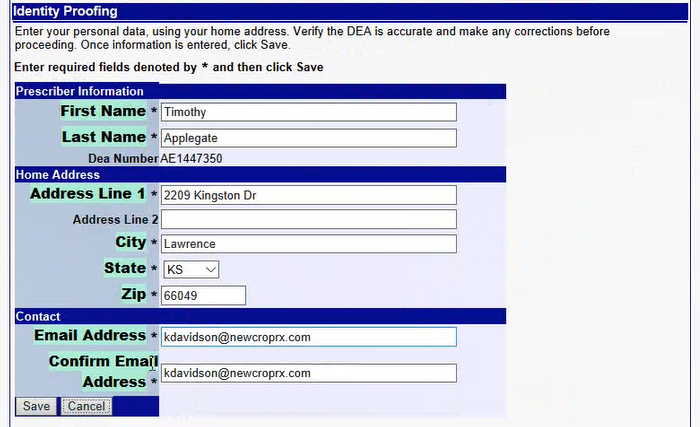
Enter your name, home address and email address EXACTLY as it appears on your Driver’s License.
Before selecting ‘Save’, verify the following:
- Do NOT use your business/office/practice address.
- Verify the DEA number is correct. If incorrect, please advise MedInformatix before proceeding.
- Enter your name EXACTLY as it appears on your Driver’s License.
First Name field: Only one name can appear in this line. If you have two first names (ex. Anne Marie), enter Anne in the First Name field and Marie in the Middle Name field. Do not use spaces, commas, hyphens or any other special characters.
Middle Name field: This is NOT required but can be used if there is a middle name/initial on your driver’s license. Do not use spaces, commas, hyphens or any other special characters.
Last name field: A last name can have two names (ex. Smith Jones) in the Last Name field but use a space to separate the names. Hyphens or dashes are NOT allowed.
Select ‘Save’.
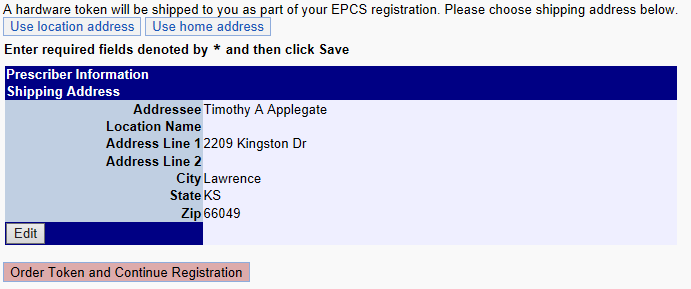
Select the preferred shipping address.
Use location address – Practice Address
Use home address – Home Address
Verify it is correct.
Select ‘Order Token and Continue Registration’
STOP HERE.
Once the hardware token (fob) is received,
please contact MedInformatix to schedule the EXOSTAR Registration.