24 – AUTOMATIC ELECTRONIC RENEWAL REQUESTS
Prescribers can be registered to received Renewal requests from Pharmacies. This will save time and effort by replacing the current option of phone calls and faxes. However, it will require a workflow change by the practice.
NOTE: All Renewals must be answered individually. If this is not done on a regular basis, SureScripts will deactivate the Prescriber from Renewals without notice.
Please create a case in MICentral to have a Prescriber registered for Renewals. This is included in the current eRx contract.
Once the Prescriber is registered,
- SureScripts will notify the Pharmacies to send Renewal requests directly to MedInformatix.
- Pharmacies will submit Renewal requests every 30 minutes.
- Each Renewal should be answered within 48 hours of receipt, when possible.
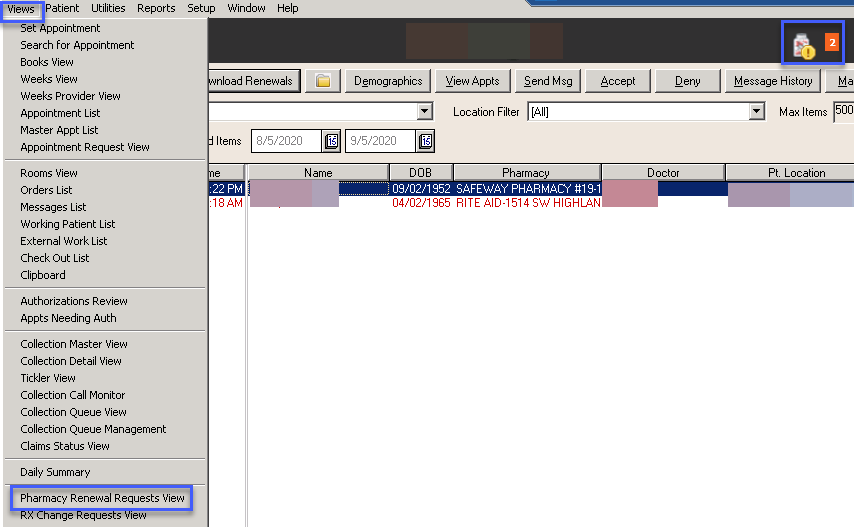
- When Renewals are present, they appear in the Workflow Views \ Views \ Pharmacy Renewal Request View.
- An Icon will also appear at the top of the Workflow Views screen to indicate Renewals under 48 hours old.
- An additional icon will appear for Renewals over 48 hours old.
CHANGES IN RENEWALS
 NEW IN v7.7.3
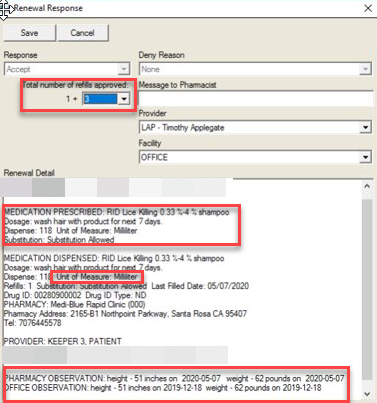
Accept and Deny Buttons
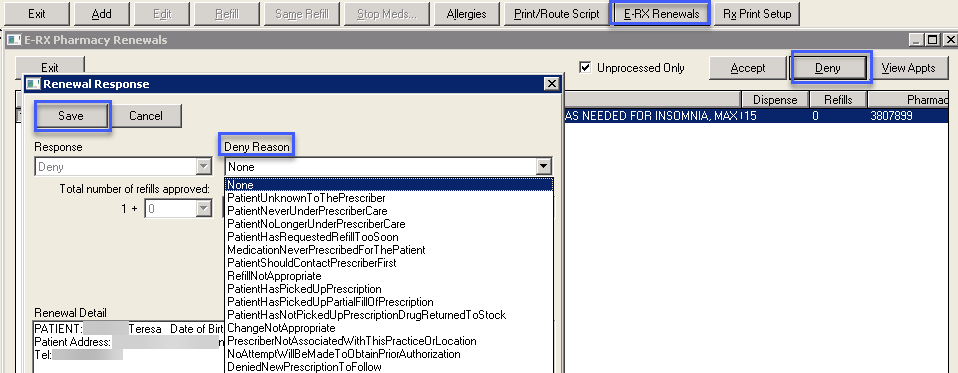
These can be used from either the Pharmacy Renewal Request View or the Medications History, ERX Renewals screen (Recommended).
If Accepting a Renewal that is not the original medication prescribed, the User must manually ‘Stop’ the original medication prescribed on the Medications History screen.
Renewal Response
- The refill is 1+3. This will place 4 refills within CLRXHIST on the next screen.
- Medication Prescribed will not be required to be sent by the pharmacies in the future.
- The Unit of Measure is human readable.
For patients ages under 19 years old, the Pharmacy Observation is included.
PHARMACY RENEWAL REQUEST VIEW 
- Refresh – Displays Renewals previously received.
- Download Renewals – Looks for and pulls new Renewal information from the pharmacies, if available.
- Chart – Opens the chart for the selected Patient in the currently MATCHED Renewals.
- Demographics - Opens Demographics for the selected Patient in the currently MATCHED Renewals.
- Send Message – Sends a Message to a User/Prescriber about a prescription for the selected Patient.
- Accept – Process Renewal – It is recommended to use the button in the Chart
- Deny – Deny Renewal - It is recommended to use the button in the Chart
- Message History – Navigates to the Message History for the selected Patient in the currently MATCHED Renewals.
- Match – Matches the Pharmacy Renewal to a Patient.
- Print - Allows for printing of the current list of Renewals
- Prescriber Filter – Displays the names of the Prescribers in the currently MATCHED Renewals
- Location Filter – Displays the locations for the currently MATCHED Renewals
- Max Items – Maximum number of Renewals displayed
- Show Processed Items – When checked, this will display the Renewals in the timeframe select in the Calendars
Columns -- Depending on screen resolution, Users will see the following column headings by scrolling left to right. 
- Date/Time - Date and time the Renewal was received
- Name – of the patient
- DOB - date of birth
- Pharmacy - requesting the prescription
- Doctor - that routed the original prescription
- Pt Location - Name of the Facility from where the original prescription was routed.
- Drug – Name of the medication requested to Renew
- Instructions – from the original prescription
- Dispense – Medication dispense
- Status –
- D=A User marked this drug as a Deny Medication transmission to the pharmacy
- F= Failed renewal request
- N=New the medication needs to be accepted or denied.
- S=Success. Renewal message received by pharmacy.
- V=Verified. Renewal message passed through MedInformatix to SureScripts. Pharmacy may or may not have the ability to send back Success message.
- X= A User marked this drug as an ‘ignore from the list’
- Y= A User marked this drug as an Accept Medication transmission to the pharmacy
- MR No - Patient medical record number in the currently MATCHED Renewals
- Account – Patient account number in the currently MATCHED Renewals
- Company – Name of the Company from which the original prescription was routed in the currently MATCHED Renewals
- Request GUID – Individual ID number given to each Renewal
- Refills – Number of Refills requested. Displays after the Renewal is processed.
- Deny reason - Reason for refusal. Displays if the Renewal is denied.
- Pharmacy Msg – Message to the Pharmacy. Displays after the Renewal is processed.
- Route Status – Provided by the Pharmacy, if they are participating.
Each Renewal MUST be processed individually. They are identified by the font color.
Red = The Renewal request does not EXACTLY match any routed prescription in MedInformatix. This is based on Demographic information as well as Medications History. For Example
- Name – John vs Jonathan
- Address - 10 E. Third Drive vs 10 East 3rd Dr.
- Renewal is not in the medication history. It may have been substituted.
Black = Not processed -- Status N. Demographic and Medication information matched originally.
Blue = Denied -- Status D. Visible when ‘Show Processed Items’ is checked
Green = Accepted-- Status Y. Transaction sent back to pharmacy. This can be viewed when pressing the checkbox for ‘Show Processed Items’.
MATCHING A RENEWAL
If the submitted Renewal does not EXACTLY match information in MedInformatix, it will need to be manually MATCHED. These Renewals will display in RED and cannot be processed until they are MATCHED to the correct patient.
- Select the Renewal to be MATCHED.
- Select the ‘Match’ button.
- Review data from the ‘Renewal Detail’.
- Select ‘Search Patient’.
- In the Patient Search, enter the patient name.
- Search Demographics and Medications History for the correct patient using the information provided in the Renewal
- After finding the correct entry, highlight the entry and by pressing the ‘Select’ button.
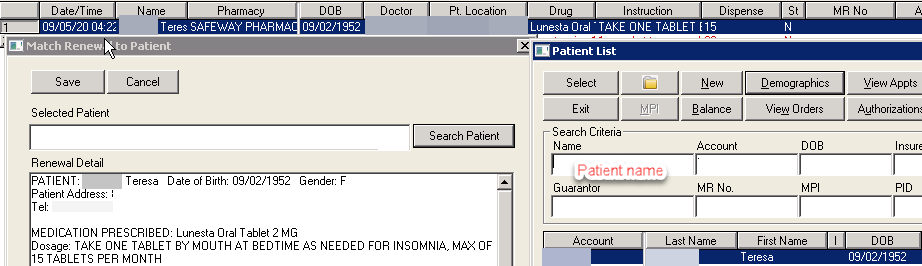 Press ‘Save’ to finish this process.
PROCESSING A RENEWAL
After it has been MATCHED, the Renewal can be processed.
- Select the Renewal
- Select the CHART icon
- Select ‘RX’
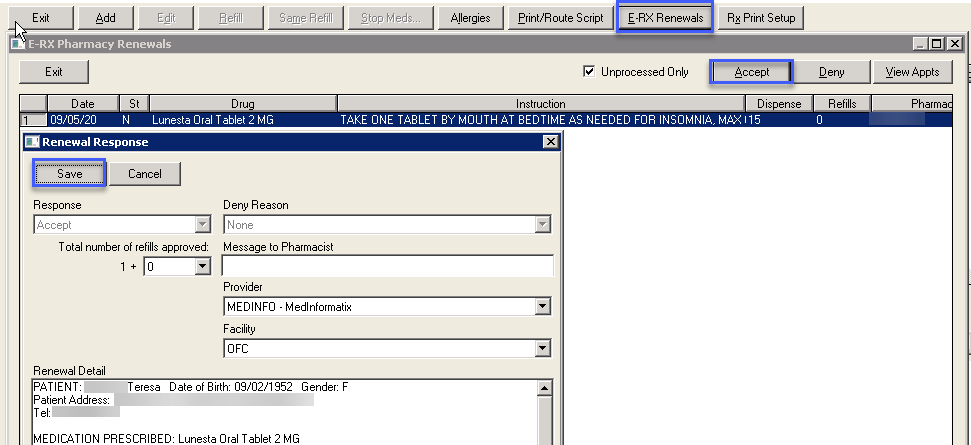
- From the Medications History screen, select ‘E-RX Renewals’
- The unprocessed Renewal will appear.
- Deselect the ‘Unprocessed Only’ box to view processed Renewals
- A ‘View Appt’ button is available
ACCEPT A RENEWAL
After determining that the Renewal can be approved, select the ‘Accept’ button.
- Review the prescription information.
- The Refill and Message to Pharmacist fields can be modified.
- The Provider will display as the User currently logged in. This should be changed to the Prescriber name.
- Select ‘Save’
- This will route the prescription, update the Medications History and remove the Renewal from the Pharmacy Renewal Request View.
DENY A RENEWAL
- After determining that the Renewal can be denied, select the ‘Deny’ button.
- Review the prescription information.
- Select from a Deny Reason from the list provided. This list cannot be modified in any way.
- The Message to Pharmacist can be modified.
- The Provider will display as the User currently logged in. This should be changed to the Prescriber name.
- Select ‘Save’
- This will route the prescription and remove the Renewal from the Pharmacy Renewal Request View.
NEW IN V7.7
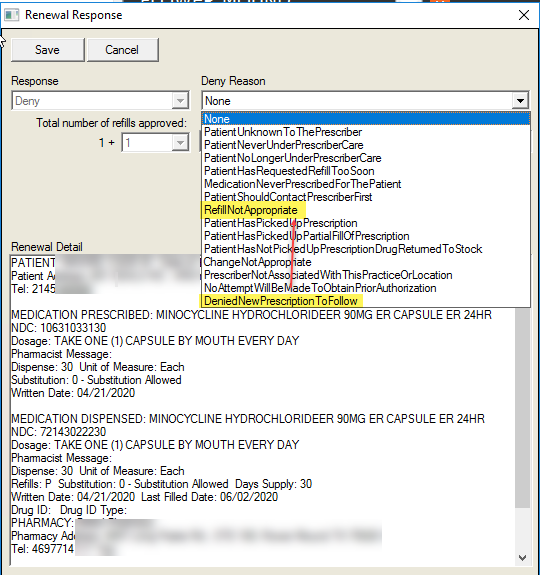
In RENEWALS, the process to use the Deny Reason, ‘DeniedNewPrescriptionToFollow’ has changed.
In order to use this Deny Reason, a new prescription must immediately be created. The Add Medication screen will automatically appear. If this is not completed, the Renewal will not be processed. If a new Prescription cannot be created, select a different appropriate Deny Reason from the list.
RIGHT CLICK IN THE PHARMACY RENEWAL REQUEST VIEW
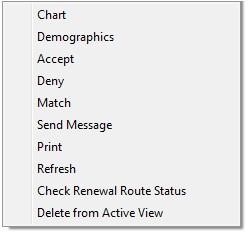 Select the Renewal and right click.
- Chart – Opens the chart for selected patient in the currently MATCHED Renewals
- Demographics - Opens Demographics for selected patient in the currently MATCHED Renewals
- Accept – Process a Renewal
- Deny – Deny a Renewal
- Match – Matches the Pharmacy Renewal to a Patient.
- Send Message – Navigates the Message History for the selected Patient in the currently MATCHED Renewals.
- Print – Allows for printing of the current list of Renewals
- Refresh – Displays Renewals previously received but not processed.
- Check Renewal Route Status -- Provides the status of the routed Renewal.
- Delete from Active View – Allows a User with correct Security Setting to manually remove the selected Renewal from the View. This should ONLY be used if the Renewal has been correctly processed and is not automatically removed from the View.