15 – ADD PRESCRIPTIONS TO THE TREE
This allows the provider to prescribe common medications quickly.
Users with the correct Security Settings can complete this process.
First, determine how the list will be structured. For example, the medication list can be alphabetical, in order by medication type, etc.
The title of the medication should include all available variables. Some fields can be modified* before routing the script.
- Name and strength
- *Instructions/Sig
- *Dispense
- *Refills - See MEDICATION REFILLS in TROUBLESHOOTING for more information.
 *Days Supply
Navigate to a ‘Test’ Patient chart
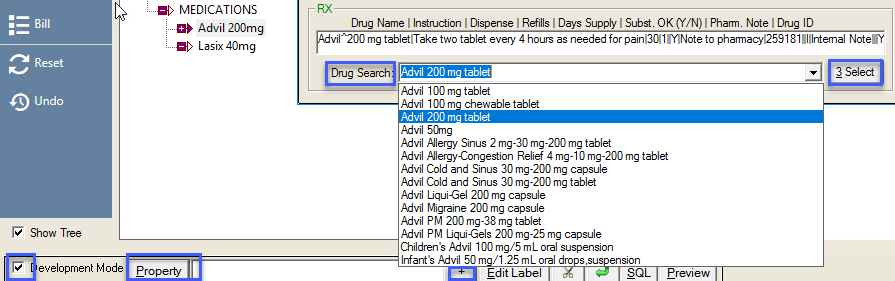
Select ‘Development Mode’
Navigate to (select) the desired location on the Tree
ADD MEDICATION NAME
In the ‘Property’ box at the bottom of the screen, enter the medication information. Include all desired information.
Select ‘+’ to add it to the tree
Select the scissors icon to remove the label
To move the label down one line, select the down arrow
ADD MEDICATION INFORMATION
From the Tree, highlight the name of the medication the select ‘Property’
From the ‘Set Item Property’ screen navigate to ‘RX’ at the bottom. Below are the variables that can be added.
Drug Name | Instructions | Dispense | Refills | Days Supply | Subst OK | Pharm Note | DrugID | Unit of Measure | Use for | Internal Note | Site | Route | As Needed(Y/N) | Long Term(Y/N)
Enter the name of the medication in the ‘Drug Search’
Select the desired medication from the dropdown then ‘Select’.
In the ‘Rx’ field enter the following available criteria separated by a pipe ( | )
If the criteria will not be entered, leave it blank.
- Instruction/SIG – Type in or select from the dropdown. Use plain English.
Do not include the following -
- These punctuations ; > < ! \ ^ $ ? = ^ ` { | } ~
- ‘As directed’ – use specific instructions
- Partial dosage in numbers. (ie. ½ should be ‘half’)
- Duplicate information (ie. as needed PRN),
- Extraneous information (ie. Sig 1 po),
- Information that should be elsewhere in the prescription (ie. dispense 1 tube, generic take one daily)
- NEW IN v7.7.3
- If the pharmacy is NCPDP2017 Ready - SIG MAX LENGTH is 1000 free text characters. Warning message for ‘140 Character Limit’ is removed.
- If the pharmacy is NOT NCPDP2017 Ready - SIG MAX LENGTH is 140 free text characters. Warning Message for ‘140 Character Limit’ will display.
- Dispense – The dispense will automatically populate if there is only one option. If not, the available packaging for the prescription will display in the top of the list in the dropdown. Other options will display at the bottom. Use numbers only in this field.
- Refills – See MEDICATION REFILLS in TROUBLESHOOTING for more information.
- Days Supply – Number of days the prescription should last
- Subst. OK – ‘Y’ or ‘N’
- Pharmacy Note – NO PUNCTUATION
- Drug ID – will auto populate
- Unit of Measure will auto populate
- Use for – Enter one of the codes below.
I=Internal
E=External
U=Uncoded
S=Sample
A=On site administration
- Internal Note – optional
- Site – for ‘Administered on Site’ medications. ie. Right Arm
- Route – for ‘Administered on Site’ medications. ie. oral, subcutaneous, etc.
- As Needed(Y/N)
- Long Term(Y/N)
Once complete, select ‘Save’.
To test the prescription, navigate back to the Tree and double click on the medication name.
The ‘Add Medications’ screen will appear with the entered criteria pre-populated.
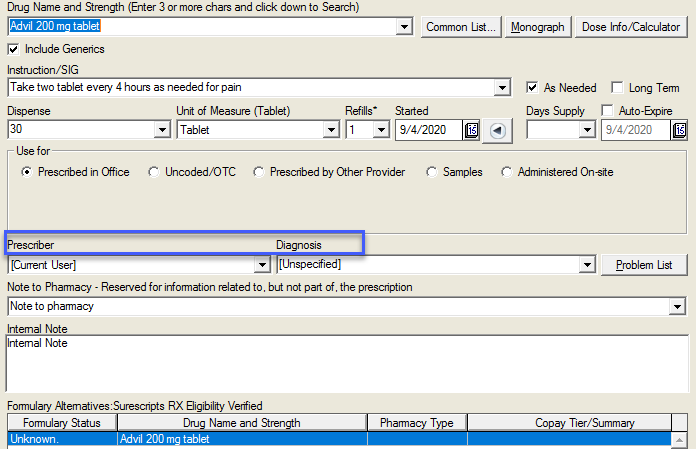
The following fields will need to be manually populated.
Prescriber – must be the prescribing physician.
Diagnosis – This information must be populated in the Problem (DX) screen.
Select ‘Save’
Process the prescription, as desired.