14 - PRESCRIPTION RIGHT CLICK INFORMATION
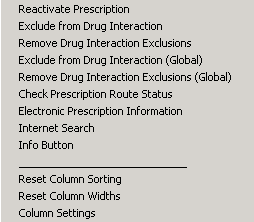 Highlight the medication then right click to enable the following.
Reactivate Prescription – Reactivate medication that was previously Stopped.
- Deselect ‘Show Active Items Only
- Locate the medication
- Right click an select ‘Reactivate Prescription’
- The Add Medication screen will appear
- Select ‘Save’ after reviewing prescription
Exclude from Drug Interaction – Excludes medication from drug-to-drug interaction for current Patient. (Legacy feature. Ignore.)
Remove Drug Interaction Exclusions – Excludes selected drug from drug-to- drug interaction processing for the current Patient. (Legacy feature. Ignore.)
Exclude from Drug Interaction (Global) – Excludes medication from drug-to-drug interaction for ALL Users and the current Patient. (Legacy feature. Ignore.)
Remove Drug Interaction Exclusions (Global) – Excludes selected drug from drug-to-drug interaction processing for ALL Users and the current Patient. (Legacy feature. Ignore.)
Check Prescription Route Status – Gives current route status of the medication
Electronic Prescription Information – NEW IN v7.7.3
This will display information regarding routed prescriptions.
- Routed Status – States where the prescription is in the routing process. Ex Accepted by Pharmacy, Failed
- Medication Fill Status – If the pharmacy is participating, this will indicate if the prescription was received by the Patient.
- Medication Cancel Status – If the pharmacy is participating, this will indicate if the pharmacy received notification that the prescription was cancelled by the Prescriber.
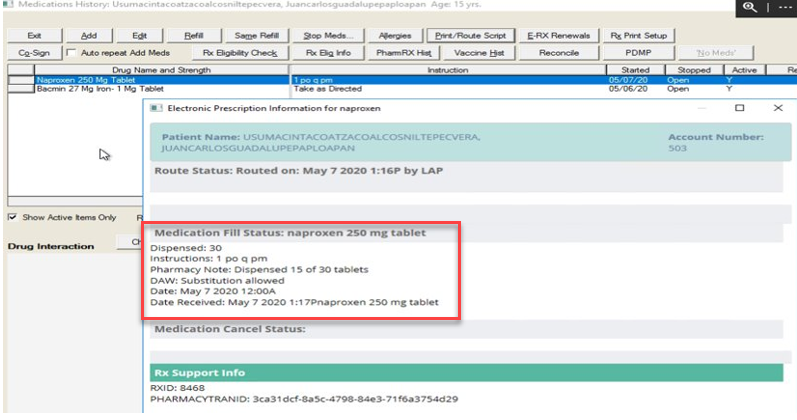 Rx Support Info – Will display the Pharmacy Transaction ID number and other information.
Internet Search – Navigates to Lexicomp which provides information on the medication.
Info Button – Navigates to the U.S. National Library of Medicine which provides information on the medication.
Reset Column Sorting – Reverts to default settings.
Reset Column Widths – Columns can be resized on demand. This will revert to default settings
Column Settings - As with most Views in MedInformatix, Add Medications can be customized by User to display in a desired order.
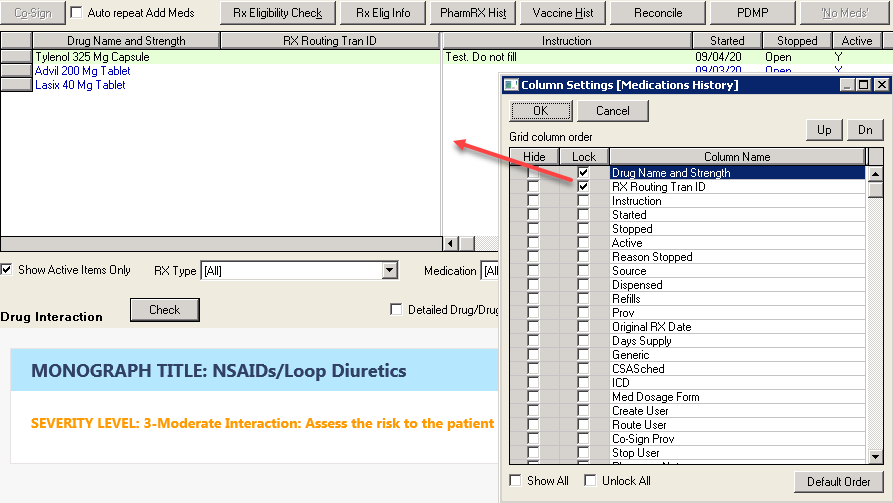
- Hide – Remove the column from the View
- Lock – The column will always display to the left of the divider
- Column Name – List of columns in the View
- Up/Dn - Move the columns to the left (Up) or right (Dn) in the view
- Show All – Show all the columns
- Unlock All – Move all the columns to the right of the divider
- Default Order – Revert to the default order