Medical Transcription Workflow
When using Medical Transcription staff with MedInformatix, it will be necessary to plan and/or design the appropriate workflow. When the Clinical features of MedInformatix are implemented, many processes that typically deal with medical transcription are eliminated or change drastically. Others, such as the Radiology process, continue to support the use of Medical Transcription even more efficiently.
In the Radiology setting, the workflow of MedInformatix is designed to support staff in their daily workflow to allow much greater ease in access and process of information. Medical Transcription is still a key requirement in this setting.
However, in practice situations where repetitive text and/or medically standard documentation are used, like those found in Exam and Plan, the system is designed to automatically create documentation. Thus, the effect is to lessen the need for transcription of the typical office visit. There are some situations, however, where descriptions of patient conversations are required or when analyzing/summarizing data from medical records brought in from the outside that may still require transcription.
In automatically creating documentation, MedInformatix follows strict CMS guidelines for documenting medical encounters. Doctors, however, are able to insert free form text in some key areas:
History of Present Illness
Review of Systems
Examination
Assessment
Plan
The free form text in these areas may be dictated. And if the Medical Transcriptionist follows the workflow described here, the text will be automatically inserted into the documentation, as long as the document is not signed and locked. Transcription can be added even if the document is saved and occurs several days later.
This workflow is critical to physician acceptance of the system. By providing a way to accommodate unusual situations with a well thought out workflow, there is less resistance. Over time, physicians are slowly encouraged to rely more on the standard data entry methods using QA’s and Questionnaires than transcription. Dictation may still be performed early in the implementation process as the physician is unable to find a choice in the system due to lack of experience. After a few weeks of use, comfort levels increase in locating choices or options, and the use of transcription is minimized.
General Workflow -- Free Form Notes
Occasionally, a user uses the #PROGNOTES exclusively to enter new data and doesn’t review the contents of the free form notes area. If this is the desired situation, the “New Note” window can be launced directly by using the action property
#PROGNOTENEW:sectioncode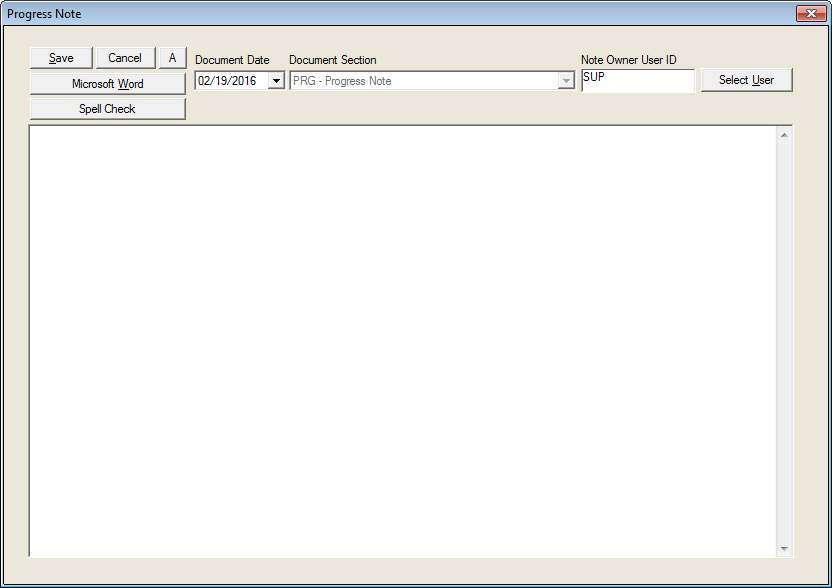
General Workflow -- Transcription
If the provider does not wish to type, a transcription note can be dictated. A tree node can be given a special action property that loads a Sound Recorder or Speech Mike.
Note: Sound Recorder is included with Windows and is used as an example for performing dictation. Sound Recorder records automatically for one minute and then stops, which may require repeated initiation in order to complete dictation. Other sound recording programs are available that will work correctly including Phillips Dictation (with Microphone), Gearplayer and many others.
Clicking on this tree node will also trigger an order to the transcription department. This can occur because an order property to the transcription department is attached to the recording tree item. Transcriptionists will be able to look at the orders in Orders View, go to the patient’s record and listen to the dictation through another tree node provided in the Transcriptionist’s custom decision tree.
Note: The provider may also choose to use a portable dictation or telephone recording system that is not linked to MedInformatix. This information would be accessed manually by the transcriptionist, but entered in the same workflow.
After the provider has completed a dictation in the MedInformatix system, it is saved by clicking on the option to finalize. This is typically an EOL (End of Letter) button or End Dictation button. This option saves the dictation and sends an order to the Transcriptionist that the item is ready for transcription.
The Transcriptionist will be monitoring the Orders View for orders directed to the TRANS (Transcription Department). If an order appears, the transcriptionist will open the Decision Tree of the specified patient. This is done by double-clicking on the order or by selecting the order and then clicking on the Chart icon on the orders view.
Once in the Transcription Tree, the transcriptionist is able to click on a tree node showing Dictated Message. This will again display the sound recorder which will automatically open the sound file pertaining to the selected patient.

Note: How the dictation and Progress Notes are opened depends on the tree design.
The transcriptionist will then open the appropriate Progress notes window, which is typically an option on the Transcription tree. A sample Transcriptionist tree is shown below with sections for entering transcription for History of Present Illness, Review of Systems, Examination, and Plan.
Some Dictation systems, such as that from DVI (Digital Voice Inc.), although not integrated directly with the windows station, can accept barcodes with identifiers. Since the Letters function can print with barcodes, it would be possible for dictation to be automatically tied in to specific patients by indicating the medical record number and appointment number on a routing slip. The transcriptionist can then pull up the same patient be using the same barcoded information on the routing slip, instead of relying on transcription orders.
The Transcriptionist will see the same progress notes entry window as the physician. The difference will come when a new note is entered.
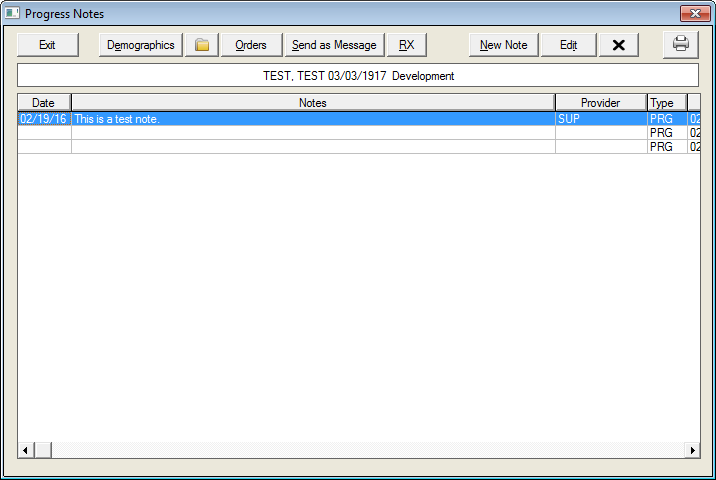
When a New Note is opened, the Document Date and Note Owner User ID fields will be blank. The Note Owner User ID will have to be entered by the Transcriptionist and it must be a valid Login ID (the system will verify this). Also, a valid document date will need to be selected from the field’s dropdown display. The dates listed are those that have existing unsigned documents, which prevents entry error.
After typing is complete, the transcriptionist will save the note and exit the Progress notes screen. If the workflow does not automatically notify the provider, the transcriptionist will navigate to the Messages node on the tree to send a message to the provider notifying them to “Review Transcription”.
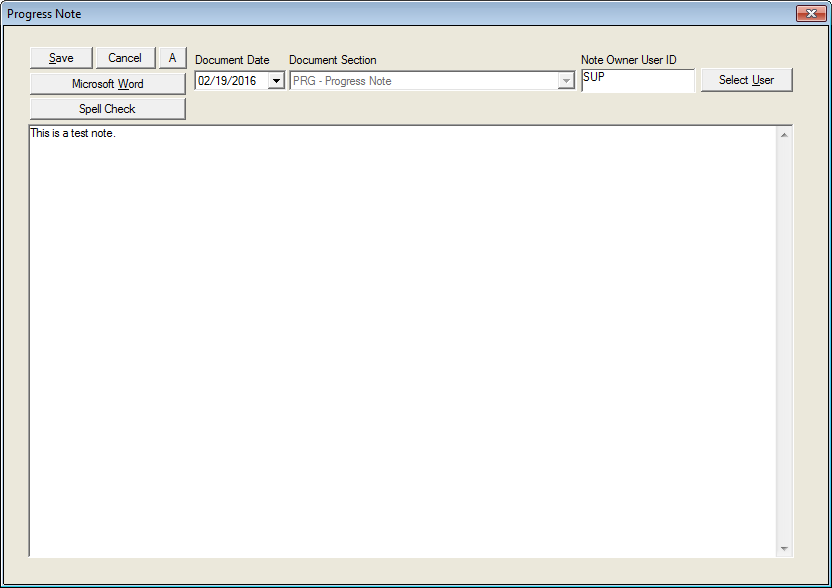
Once the provider receives the message, typically from Message View, he/she will open the patient’s Decision Tree and proceed to the Document Repository where the transcribed text will appear on the unsigned document. If everything appears to be correct, the physician will sign the document with ink or electronic signature after which the data on the document is permanent and cannot be changed.
If a problem is found and needs to be corrected by a transcriptionist, the physician will repeat the same procedure (from the point of dictation).
The difference between the screen used by Provider and Transcriptionist is based on the action property used. The physician free form note screen is called #PROGNOTES while the action property used by the Transcriptionist is called #TRANSCRIBENOTES.
Implementing the Workflow in a Decision Tree
The workflow described above is implemented in the Primary Care Decision Tree. The following documentation explains how this is accomplished by a tree designer in a custom decision tree.
Sound Recorder and Dictation -- Physician tree
In order to run Sound Recorder to do dication, a tree node should be given the following action property:
#VIEWER:SNDREC32|.WAV
In addition this tree node should also have an order property as follows:
TRANS|Transcription
This will send a message to the Transcription Department.
Sound Recorder and Dictation -- Transcriptionist Tree
The Transcription tree needs a tree node with the following action property:
#VIEWER:SNDREC32|.WAV
This will allow those users to listen to transcription by launching the Sound Recorder. Another tree option is provided (in a separate tree node) to delete the transcription.
#VIEWERDELETE:.WAV|Delete Voice File?
Boilerplates
Special boilerplates must be included in the decision trees and these must be included automatically every time a patient encounter is documented. In the Primary Care Tree, this is done by attaching the boilerplate properties to the Tree Node marked “Plan” on each problem. Since the physician will always go this tree node, the boilerplates will always get activated.
The boilerplates to use are:
HPNOTES.TXT (Notes for HPI)
RSNOTES.TXT (Notes for Review of Systems)
PENOTES.TXT (Notes for Physical Exam)
DXNOTES.TXT (Notes for Diagnosis)
PLNOTES.TXT (Notes for Plan)
The contents of the boilerplates are shown below. These boilerplates are special because they have “deferred” SQL statements. Observe the SQL statements in each one and you will notice that each SQL Document Interpreter command is enclosed in another wrapper of &{ }. This special format assures that it will require two separate passes by the document interpreter before the queries are executed. This will allow the documents to be saved in the Document Repository with active SQL statements embedded. Only the signing of documents will cause these special statements to be passed through the Document Interpreter one more time for final resolution. This allows the delayed transcription process to occur.
HPNOTE.TXT
&{&SQLBLOCKSTART.}
-- &{&SQLNA}&{&SQLTRIM}&{&SQLNOCR}&{&{SELECT
MSGTEXT FROM CLPNOTES WHERE VISITDATE='&DATESQL2K' AND
MSGTYPE='HPI' AND PROV='&USER' AND STATUS='Y' AND
COMPANY='&COMPANY' AND ACCOUNT='&ACCOUNT' ORDER BY MSGID }}
&{&SQLBLOCKEND.}
RSNOTE.TXT
&{&SQLBLOCKSTART.}REVIEW OF SYSTEMS:
&{&SQLNA}&{&SQLTRIM}&{&SQLNOCR}&{&{SELECT
MSGTEXT FROM CLPNOTES WHERE VISITDATE='&DATESQL2K' AND
MSGTYPE='ROS' AND PROV='&USER' AND STATUS='Y' AND
COMPANY='&COMPANY' AND ACCOUNT='&ACCOUNT' ORDER BY MSGID }}
&{&SQLBLOCKEND.}
DXNOTE.TXT
&{&SQLBLOCKSTART.}
IMPRESSIONS: &{&SQLNA}&{&SQLTRIM}&{&SQLNOCR}&{&{SELECT
MSGTEXT FROM CLPNOTES WHERE VISITDATE='&DATESQL2K' AND
MSGTYPE='DX' AND PROV='&USER' AND STATUS='Y' AND
COMPANY='&COMPANY' AND ACCOUNT='&ACCOUNT' ORDER BY MSGID }}
&{&SQLBLOCKEND.}
&{&SQLBLOCKSTART.}
PENOTE.TXT
Additional Findings:
&{&SQLNA}&{&SQLTRIM}&{&SQLNOCR}&{&{SELECT
MSGTEXT FROM CLPNOTES WHERE VISITDATE='&DATESQL2K' AND
MSGTYPE='EX' AND PROV='&USER' AND STATUS='Y' AND
COMPANY='&COMPANY' AND ACCOUNT='&ACCOUNT' ORDER BY MSGID }}
&{&SQLBLOCKEND.}
PLNOTE.TXT
&{&SQLBLOCKSTART.}
PLAN DISCUSSION: &{&SQLNA}&{&SQLTRIM}&{&SQLNOCR}&{&{SELECT
MSGTEXT FROM CLPNOTES WHERE VISITDATE='&DATESQL2K' AND
MSGTYPE='PL' AND PROV='&USER' AND STATUS='Y' AND
COMPANY='&COMPANY' AND ACCOUNT='&ACCOUNT' ORDER BY MSGID }}
&{&SQLBLOCKEND.}
Disabling Delayed Transcription Feature
You can disable the features of the Document Interpreter which are used to do delayed transcription (these include &SQLBLOCKSTART, &{ } wrappers on existing SQL statements which are found on the boilerplates HPNOTE.TXT, RSNOTE.TXT, PENOTE.TXT, DXNOTE.TXT and PLNOTE.TXT).
Clients who do not use this feature are confused by the appearance of SQL statements in their documents. If disabled, the system will process the document twice through the document interpreter when the documentation button is clicked. To disable delayed transcription features, make the entry below in TREE.TBL in the OUTLINE directory.
[Configuration]
Delayed Interpretation=0